Outgrowing your current platform is a clear sign your business is ready for more powerful tools. If you’re using Square but finding it limiting as you scale, migrating to Shopify opens access to advanced e-commerce features, greater customization, and a robust app ecosystem designed for growth. Making the switch from Square to Shopify doesn’t have to disrupt your operations when you follow a structured approach.
This guide walks you through everything you need to know about Square to Shopify migration, from preparing your data to choosing the correct method and avoiding common pitfalls that can cost you time and revenue.
Summary
This guide covers the complete process of moving your online store from Square to Shopify, including:
- Two proven migration methods (manual CSV import and automated third-party solutions) with step-by-step instructions for each approach
- Critical data preparation steps that prevent errors and ensure your products, customers, and orders are transferred accurately
- Technical requirements for mapping Square data fields to Shopify’s structure, including proper formatting for variants, inventory, and customer information
- Post-migration setup tasks, including payment gateway configuration, shipping rate setup, domain redirection, and POS integration for retail stores
- Key differences between Square and Shopify that justify migration, from app ecosystem size to multichannel selling capabilities
- Common migration challenges and tested solutions that help you avoid downtime and data loss during the transition
Why Businesses Migrate from Square to Shopify
Square works well for basic online selling and point-of-sale needs, but many growing businesses eventually hit limitations that slow expansion. Understanding whether Shopify is good for small business operations helps you evaluate if migration makes strategic sense for your specific situation.
Shopify Offers More Advanced E-Commerce Features
Shopify provides built-in tools designed specifically for scaling e-commerce operations. The platform includes abandoned cart recovery that automatically sends reminders to customers who leave items unpurchased, potentially recovering 10-15% of lost sales. Advanced discounting options give you flexibility in creating promotions, from buy-one-get-one deals to tiered pricing based on quantity. Shopify also supports more payment gateways than Square, making checkout easier for international customers.
Square’s feature set works for straightforward retail, but customization requires workarounds. When you need complex product variants, subscription billing, or sophisticated discount structures, Shopify handles these natively without custom development.
Greater Customization and Design Flexibility
Your store’s appearance directly impacts conversion rates. Shopify provides extensive theme customization options, allowing you to modify templates with custom HTML, CSS, and Liquid code to match your brand precisely. The platform offers both free and premium themes designed by professional developers, giving you design quality that would cost thousands to build from scratch.
Square’s customization options remain limited in comparison. While you can adjust colors and basic layouts, creating a genuinely unique storefront requires significant technical workarounds. Shopify’s flexibility means your store can evolve with your brand without platform constraints.
Larger App Ecosystem for Extended Functionality
Shopify’s App Store contains over 8,000 apps covering everything from inventory management to marketing automation. Popular solutions like Klaviyo for email marketing, Yotpo for reviews, and Oberlo for dropshipping integrate directly with your store data. These integrations let you build exactly the tech stack your business needs.
Square’s app marketplace is growing but remains considerably smaller. When you need specialized functionality, Shopify’s ecosystem typically offers multiple proven solutions, while Square may require custom development or manual workarounds.
Better Multi-Channel Selling Capabilities
Modern consumers shop across multiple platforms. Shopify lets you sell on your website, Facebook, Instagram, Amazon, eBay, and physical retail locations from a single inventory system. This unified approach prevents overselling and gives you consolidated reporting across all channels.
Through integrations like Facebook Shopify integration, and Shopify Amazon integration, you can expand your reach without managing separate inventories for each platform. Square primarily focuses on in-person and basic online sales, making true omnichannel retail more challenging.
More Powerful Inventory and Order Management
As your catalog grows beyond a few hundred products, robust Shopify inventory management becomes essential. Shopify tracks inventory across multiple locations, supports bulk actions for updating products, and provides detailed reports on stock levels and sales velocity. The platform also integrates with third-party inventory systems like TradeGecko and Stitch Labs for even more sophisticated management.
Managing thousands of SKUs, variants, and stock locations proves difficult in Square without significant manual effort or custom integrations.
Superior Shipping and Fulfillment Options
Efficient shipping directly impacts customer satisfaction and your bottom line. Shopify provides calculated shipping rates through integrations with carriers like UPS and FedEx, automatically showing customers accurate costs based on their location and your settings. The Shopify Fulfillment Network can even handle warehousing and shipping for you.
Square offers basic shipping tools, but as order volume increases, Shopify’s native carrier integrations and fulfillment network provide the infrastructure needed to scale without proportionally growing labor costs.
Manual Method: Square to Shopify Migration
Migrating manually gives you complete control over the process and costs nothing beyond your time. This approach works best for smaller stores with straightforward product catalogs and limited customer data. Be prepared to spend several hours formatting data correctly and testing imports.
Step 1: Export Your Square Products
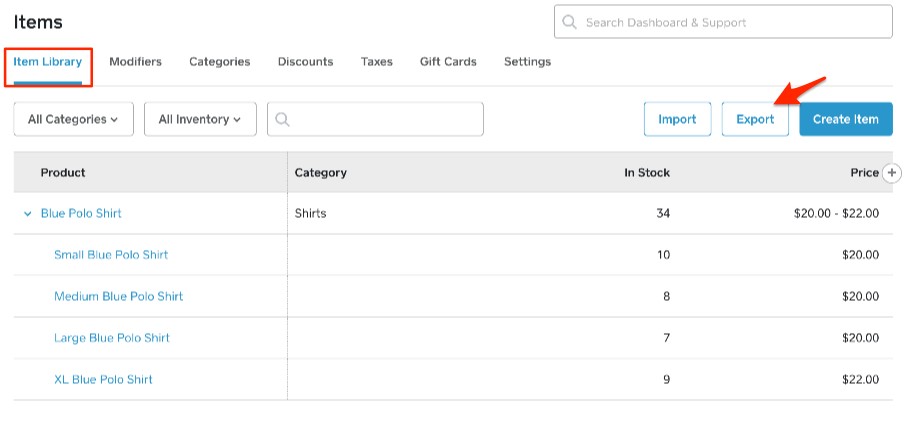
Log in to your Square Dashboard and navigate to Items & Orders, then select Items. Click Actions, then Export Library, and choose CSV format. Save the file as SquareProductDownload.csv to your computer. This file contains all your product data, including names, descriptions, prices, SKUs, and variants.
Review the exported file before proceeding. Check for any unusual characters, missing data, or formatting issues that might cause problems during import. Clean data before import saves hours of troubleshooting later.
Step 2: Prepare Your Shopify Product CSV
Download Shopify’s product CSV template from their help documentation. Open both your Square export and the Shopify template in a spreadsheet application. You need to map Square’s column headers to match Shopify’s required format exactly.
Here’s how Square fields map to Shopify fields:
| Square Field | Shopify Field | Action Required |
| Item Name | Title | Change column header name |
| Default Vendor Name | Vendor | Change column header name |
| Category | Product Category | Use Shopify’s standard taxonomy |
| SKU | Variant SKU | Change column header name |
| Weight (kg) | Variant Grams | Multiply values by 1,000 to convert |
| Price | Variant Price | Change column header name |
| SEO Title | SEO Title | No changes needed |
| SEO Description | SEO Description | No changes needed |
| Option Name 1 | Option1 Name | Change column header name |
| Option Value 1 | Option1 Value | Change column header name |
Delete any columns from your Square file that don’t have corresponding Shopify fields. Ensure your Handle column contains only letters, numbers, and dashes (no spaces or special characters). The Handle creates the product URL, so make it descriptive but concise.
Step 3: Import Products to Shopify
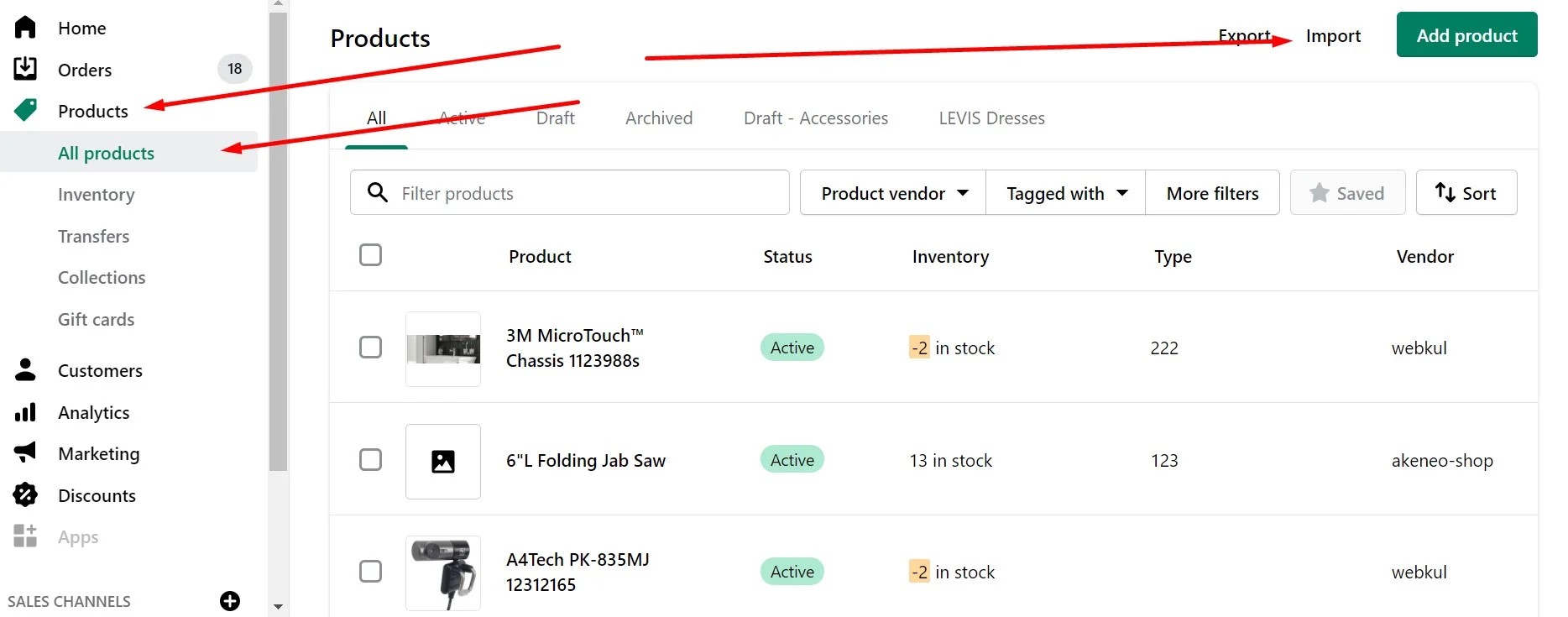
From your Shopify admin, go to Products, then click Import. Upload your formatted CSV file and deselect “Publish new products to all sales channels” unless you want products immediately visible. Click Upload and preview to check for errors before completing the import.
Shopify will send a confirmation email when the import completes. Review a sample of imported products to verify that prices, weights, variants, and images transferred correctly. Common issues include missing variant details or incorrect pricing.
Step 4: Configure Your Shopify Store Settings
Choose and customize a Shopify theme that aligns with your brand. Free themes work well for most businesses, but premium themes offer more customization options. Configure your store’s basic settings, including currency, taxes, and business information.
Your store won’t be fully functional until you complete these essential configurations. Take time to set everything correctly before migrating customer data.
Step 5: Set Up Payment Processing

If available in your region, activate Shopify Payments for the lowest transaction fees and most straightforward setup. Alternatively, connect a third-party payment gateway like PayPal, Stripe, or continue using Square through integration.
From Settings, select Payments and add your preferred payment methods. Configure your checkout settings, including order processing, customer accounts, and email notifications. Test the complete checkout process with a real transaction to verify everything works correctly.
Step 6: Configure Shipping Rates and Zones

Set up shipping zones based on where you deliver products. Define rate structures for each zone, whether flat rate, free shipping thresholds, or carrier-calculated rates. Accurate shipping configuration prevents revenue loss from undercharging or customer complaints from overcharging.
Navigate to Settings, then Shipping and delivery. Create shipping zones for your target markets and add appropriate rates. If you ship from multiple locations or warehouses, configure each location’s address for accurate rate calculations.
Step 7: Configure Tax Settings
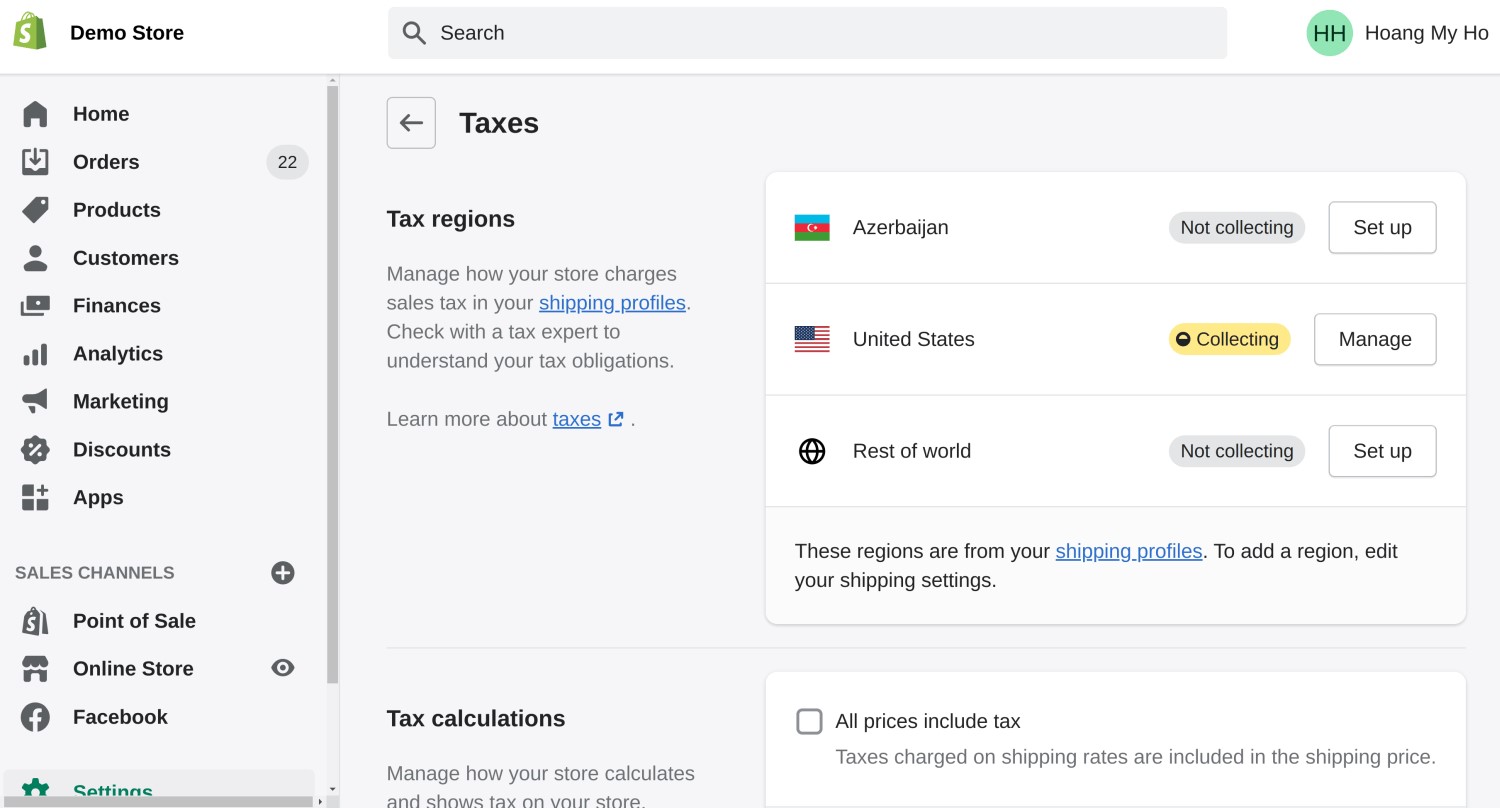
Tax requirements vary by location and product type. Shopify can automatically calculate taxes based on customer location, but you need to configure your tax registration numbers and any specific rules for your business. Consult with a tax professional if you’re unsure about requirements.
Go to Settings, then Taxes and duties. Review the automatic tax settings and add any manual rates or exemptions needed for your products and markets. An incorrect tax setup creates compliance issues and unhappy customers.
Step 8: Export and Import Customer Data
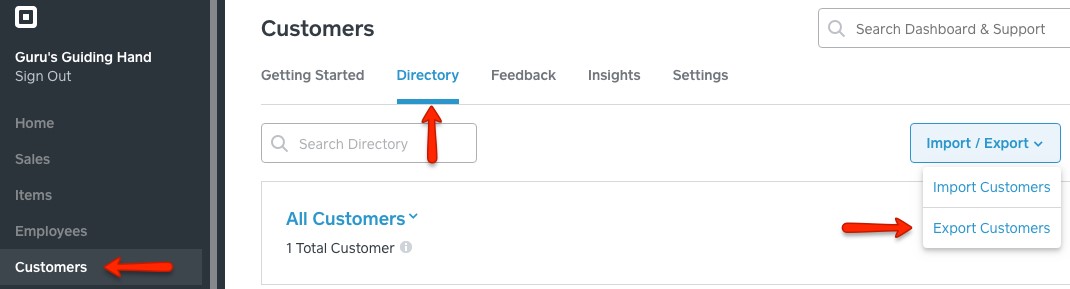
In Square, navigate to Customers, then Directory. Click Import/Export, then Export Customers and download the CSV file. Save it as SquareCustomerDownload.csv.
Download Shopify’s customer CSV template and reformat your Square export to match. Critical mappings include:
| Square Field | Shopify Field | Notes |
| Surname | Last Name | Change header |
| Email Address | Change header | |
| Email Subscription Status | Accepts Email Marketing | Use “yes” or “no” values |
| Street Address 1 | Default Address Address1 | Change header |
| State | Default Address Province Code | Use two-letter ISO codes |
| Postal Code | Default Address Zip | Change header |
Add a Country column with the appropriate country ISO code (US, CA, GB, etc.) as Shopify requires this field even though Square doesn’t export it.
Step 9: Import Customers to Shopify
From the Shopify admin, go to Customers, then Import. Upload your formatted customer CSV file and review the import summary. Shopify will show how many customers will be created and alert you to any formatting issues.
Complete the import and verify a sample of customer records. Check that addresses, email preferences, and contact information were transferred correctly. Customers will need to reset passwords since Square and Shopify use different encryption methods.
Step 10: Set Up Domain Redirection
If you’re using a custom domain with Square, you need to transfer it to Shopify or point it to your new store. In Square’s settings, disconnect your domain. Then, in Shopify, follow the domain connection process.
Set up 301 redirects for essential pages. Your old Square URLs won’t match Shopify’s URL structure, so create redirects to prevent broken links and maintain SEO value. Common redirects include product pages, collections, and policy pages.
Step 11: Test Everything Before Going Live
Place test orders using different payment methods, shipping addresses, and product combinations. Verify that order confirmations are sent correctly, inventory updates are appropriately processed, and the checkout page functions smoothly. Testing catches issues before they affect real customers.
Review your store on mobile devices since over 60% of e-commerce traffic comes from smartphones. Check that images load correctly, navigation works intuitively, and checkout completes efficiently on smaller screens.
Migration Via Third-Party Solution: Using LitExtension
Automated migration tools handle the technical complexity of data transfer, reducing time investment and minimizing errors. LitExtension provides a proven solution designed explicitly for Square to Shopify migrations. This method works best when you have large amounts of data, limited technical expertise, or need to minimize downtime.
Step 1: Create Your LitExtension Account
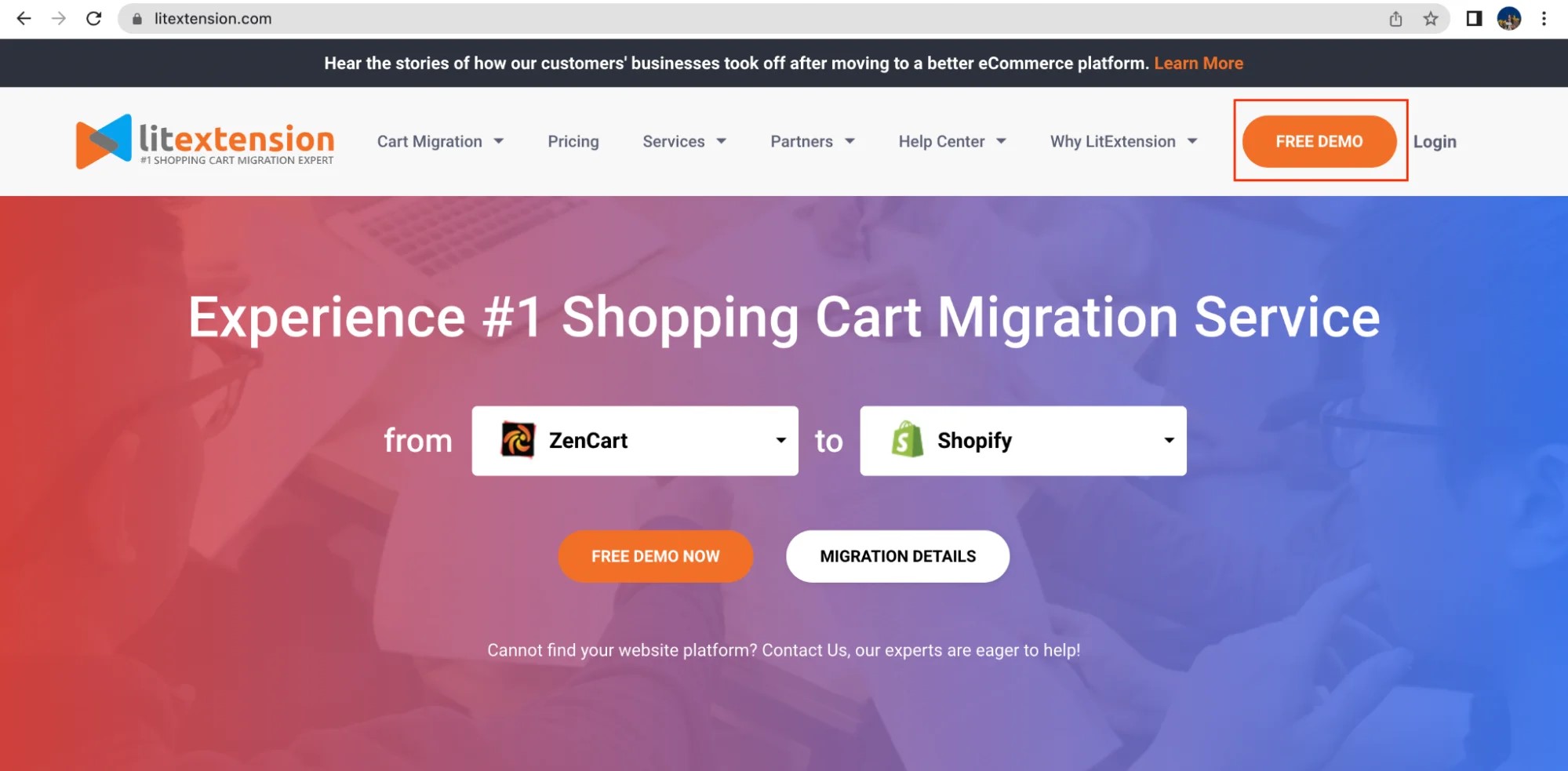
Visit LitExtension and click “Free Demo” to create an account. Provide your email address and create a password. The platform offers a free demo migration so you can verify the process works correctly before paying for a complete migration.
Review your migration options and pricing based on your store’s entity count. LitExtension charges based on the number of products, orders, and customers you’re migrating.
Step 2: Connect Your Square Store
Select Square as your source platform. Enter your Square store URL and API access token. Find your API access token in your Square Developer Dashboard under Applications. This secure token allows LitExtension to read your store data without storing sensitive information.
LitExtension uses read-only access, meaning it can pull data but cannot modify or delete anything in your Square store. Your original store remains untouched throughout the process.
Step 3: Connect Your Shopify Store
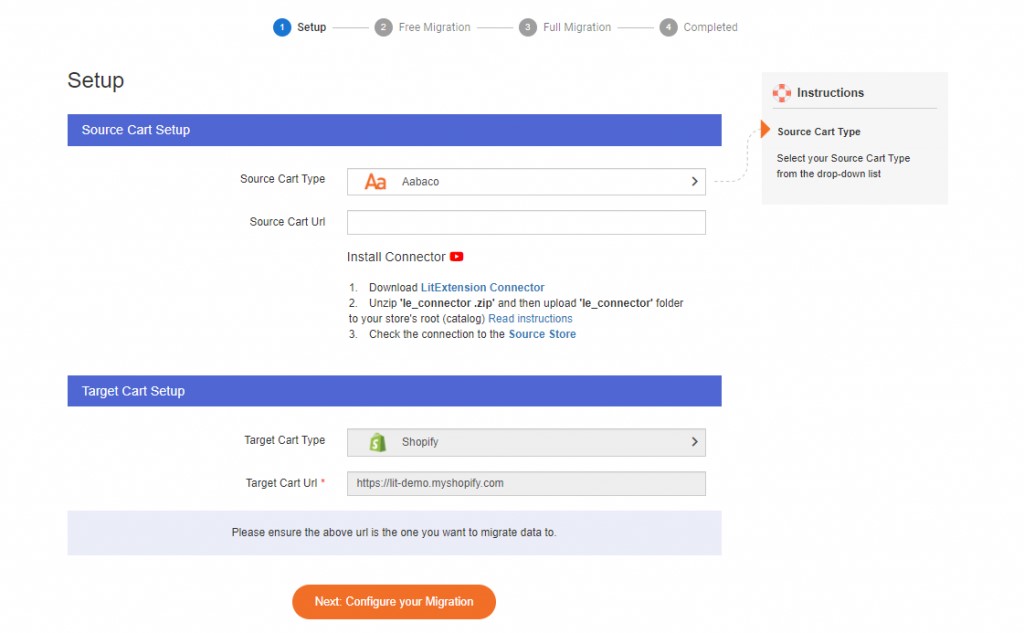
Select Shopify as your target platform. Enter your Shopify store URL and generate an API access token from your Shopify Admin under Apps and sales channels. Grant LitExtension the necessary permissions to import data to your store.
The system will verify both connections before allowing you to proceed. If connection issues occur, check that your API credentials are correct and that you’ve granted appropriate permissions.
Step 4: Select Data Entities to Migrate
Choose which data types you want to transfer: products, categories, customers, orders, and other entities. LitExtension shows you exactly how many of each entity type will migrate based on your selection. You can migrate everything or select specific data sets.
For most businesses, migrating products, customers, and recent orders makes sense. Historical orders older than a year may not need migration if you can access them through Square for reference.
Step 5: Configure Migration Options
Map data fields between Square and Shopify. LitExtension’s automated mapping handles most standard fields, but you can customize how specific attributes transfer. Review options for handling product variants, customer groups, and order statuses.
Select additional options like creating 301 redirects for SEO, preserving order IDs, or clearing existing Shopify data before import. These options help ensure a clean migration that maintains your store’s search rankings.
Step 6: Run a Demo Migration
Click to start your free demo migration. This test transfer processes a small sample of your data, typically 10-20 entities from each category. Review the results carefully to confirm everything maps correctly before committing to a complete migration.
Check product details, variant structures, pricing, customer information, and order data. If anything looks incorrect, adjust your field mappings and run another demo. The demo is free and unlimited, so use it to get everything right.
Step 7: Execute the Full Migration
Once you’re satisfied with demo results, purchase your full migration package and initiate the complete transfer. LitExtension’s system runs continuously, even if you close your browser. You’ll receive email updates about progress and completion.
Migration time varies based on data volume. Stores with a few hundred products might complete in under an hour, while larger catalogs with thousands of products and orders could take several hours.
Step 8: Verify Your Migrated Data
After the migration completes, LitExtension provides a detailed report showing what was transferred successfully and flags any issues. Review your Shopify store systematically, checking products, categories, customers, and orders against your Square records.
Test critical functionality like adding products to cart, checking out, and processing refunds. Verify that inventory counts match your Square records. Address any discrepancies before directing customers to your new store.
Step 9: Configure Post-Migration Settings
Even with a successful data migration, you still need to configure Shopify-specific settings. Set up your payment gateway, configure shipping rates, install necessary apps, and customize your theme. Review automated email templates and adjust them to match your brand voice.
Consider working with Shopify web development experts if you need extensive customization or have complex requirements beyond basic migration.
Disadvantages of Square That Drive Migration
While Square serves many businesses well, several limitations become apparent as stores grow. Understanding these constraints helps validate your decision to migrate to a more robust platform.
| Limitation | Impact on Growing Businesses |
| Limited Customization | Templates restrict design flexibility, making unique branding difficult without extensive custom development |
| E-commerce Functionality | Advanced features like product bundles, subscriptions, and complex variants require workarounds |
| Smaller App Ecosystem | Fewer third-party integrations mean manual work or custom development for specialized needs |
| Restricted SEO Tools | Basic SEO capabilities limit organic traffic growth compared to dedicated e-commerce platforms |
| Data Portability Issues | Exporting data for migration or backup proves more difficult than on open platforms |
| Scalability Concerns | Performance and feature limitations emerge as product catalogs and order volumes increase |
| Higher Transaction Fees | For high-volume stores, transaction fees can exceed costs on platforms with more pricing tiers |
| Limited International Support | Multi-currency and international shipping features remain basic compared to global e-commerce platforms |
| Basic Analytics | Reporting capabilities don’t match the depth needed for data-driven decision making at scale |
Critical Considerations Before You Migrate
Successful migrations require planning beyond simply transferring data. These strategic considerations help prevent common pitfalls that derail transitions.
Can I Use Square With Shopify?
Yes, you can integrate Square with Shopify even after migration. This works well during transition periods when you’re running both platforms simultaneously. Square’s payment processing can connect to Shopify through third-party apps, though you’ll pay transaction fees to both platforms.
Some retailers keep Square for physical point-of-sale while using Shopify for e-commerce. This hybrid approach works but requires careful inventory synchronization to prevent overselling.
How to Connect Square to Shopify
Connecting these platforms requires a middleware application since they don’t integrate natively. Apps like Syncio or Stock Sync can bridge the two systems, syncing inventory and order data between platforms. Evaluate costs carefully, as ongoing integration fees add up.
For most businesses, a clean migration to Shopify (including adopting Shopify POS for retail) provides better long-term value than maintaining two separate systems.
Will I Lose Data During Square to Shopify Migration?
Data loss risk depends on your migration method and preparation quality. Manual migrations carry a higher risk of human error, particularly with large datasets. Automated tools like LitExtension reduce this risk through tested processes and verification steps.
Always create complete backups of your Square data before starting migration. Export products, customers, orders, and any custom data to CSV files. Store these backups securely so you can reference or re-import if needed.
How Long Does Migration Take?
The timeline varies significantly based on several factors. Manual migrations for stores with 100-500 products typically require 8-15 hours of hands-on work spread across several days for data prep, import, and verification. Stores with thousands of products could require weeks of manual work.
Automated migrations through services like LitExtension complete data transfer in hours, but you still need time for pre-migration prep and post-migration configuration. Plan for a total project timeline of 1-3 weeks from start to going live, regardless of migration method.
Should I Migrate Everything or Start Fresh?
This depends on your business history and data quality. If you’ve been operating for years with outdated products, duplicate customers, or messy categorization, migration offers an opportunity to clean house. Consider migrating only active products, valuable customers, and recent orders.
Starting partially fresh takes more upfront work but results in a cleaner, more maintainable store. Evaluate whether the time spent cleaning existing data exceeds the time needed to rebuild key elements.
What About My SEO Rankings?
Proper 301 redirects preserve most of your search engine rankings during migration. Without redirects, you’ll lose SEO value from existing links pointing to your Square store. Map all meaningful URLs from Square to their Shopify equivalents and implement redirects.
Beyond redirects, ensure your Shopify store has optimized meta titles, descriptions, alt text, and URL structures. Review our Shopify SEO tips to maximize organic traffic post-migration.
Post-Migration: Migrating Your Square POS to Shopify POS
If you operate physical retail locations, you’ll need to transition your point-of-sale system along with your e-commerce platform. Shopify POS provides a unified solution that syncs inventory and sales data across all channels.
Installing Shopify POS
Download the Shopify POS app from the iOS App Store or Android Play Store. Log in using your Shopify admin credentials. The app automatically syncs with your product catalog and inventory.
From your Shopify admin, navigate to Settings, then Apps and sales channels. Search for “Point of Sale” and install the channel. This adds POS functionality to your Shopify account.
Choosing Your POS Plan
Shopify offers two POS plans. POS Lite comes free with all Shopify plans and works well for occasional in-person selling at markets or pop-ups. POS Pro costs extra monthly but includes advanced features like staff management, smart inventory, customer profiles, and detailed analytics.
Evaluate your retail needs against plan features. High-volume retail stores benefit from POS Pro, while occasional sellers can start with Lite and upgrade as needed.
Setting Up Your Hardware
Some Square hardware works with Shopify POS, but compatibility isn’t guaranteed. Check Shopify’s supported hardware list before purchasing new equipment. At a minimum, you need a mobile device (tablet or phone) and a card reader.
Complete retail setups typically include a card reader, receipt printer, barcode scanner, and cash drawer. Shopify partners with hardware providers offering bundled packages designed for different retail environments.
Connect hardware through the Shopify POS app by navigating to Settings, then Connectivity, then Set up hardware. Follow prompts to pair each device via Bluetooth or cable connection.
Configuring Payment Methods
If you’ve already set up Shopify Payments for your online store, it automatically works with POS. From the POS app, go to Settings, Payment types, and verify that credit/debit shows as accepted.
Enable Tap to Pay on compatible iPhone and Android devices for the simplest checkout experience. This eliminates the need for separate card readers for many businesses.
Adding Staff and Setting Permissions
Create staff accounts for employees who will use the POS system. From the Shopify admin, go to Settings, then Users and permissions. Add staff members with appropriate access levels. POS-only staff accounts limit access to just the point-of-sale app without broader admin capabilities.
Configure individual permissions carefully to protect sensitive business data while giving staff the access they need to serve customers effectively.
Managing Inventory Across Channels
Shopify automatically syncs inventory between your online store and POS locations. When you sell an item in-store, stock decreases for online availability unless you configure separate inventory for different places.
Set up location-specific inventory if you stock certain products only in physical stores or warehouses. From Products, select a product, then edit inventory to assign quantities to specific locations.
Key Takeaways
A successful Square to Shopify migration comes down to preparation, choosing the proper method for your situation, and thorough testing before going live. Remember these essential points:
- Start with data cleanup in Square before exporting to reduce errors and save time during import
- Manual migration works for smaller stores, but becomes impractical above 500 products due to the time investment required
- Automated migration tools like LitExtension handle complex data transfers more reliably for larger stores
- Always run demo or test migrations before executing a complete data transfer to catch formatting issues early
- Post-migration configuration matters as much as data transfer for a functional store
- Plan for 1-3 weeks total project time, including prep, migration, configuration, and testing
Conclusion
Moving from Square to Shopify positions your business for long-term growth with access to advanced features, better customization, and a robust app ecosystem. Whether you choose manual CSV migration or an automated solution like LitExtension, following a structured approach minimizes downtime and prevents data loss. The platform switch requires upfront effort, but the result is a more powerful, scalable e-commerce operation that grows with your ambitions.
Need expert help with your Square to Shopify migration? Folio3’s experienced Shopify development team handles the entire process from start to finish, ensuring zero data loss and minimal business disruption. Contact us today to discuss your migration project.
Frequently Asked Questions
Is It Difficult to Migrate from Square to Shopify?
The migration process is straightforward but time-intensive. With proper preparation and clear instructions, most store owners can handle manual migration for smaller catalogs. Larger stores benefit from automated tools that reduce complexity and time investment.
What Data Can Be Migrated from Square to Shopify?
You can migrate products (including variants, images, prices, SKUs), customers (contact information, addresses, purchase history), orders (transaction records, order details, statuses), product categories, and basic store content. Some data like passwords cannot transfer due to security encryption differences.
Will I Lose Any Data During the Migration Process?
The risk of data loss is minimal when you follow proper procedures and create backups first. The most common issues involve formatting errors rather than complete data loss. Always export and save all Square data before beginning migration.
How Long Does It Take to Migrate from Square to Shopify?
Timeline depends on store size and migration method. Small stores (under 200 products) can complete manual migration in 1-2 days. Automated migrations process data in hours but require additional time for configuration. Plan for a total project timeline of 1-3 weeks from start to a fully operational store.
Can I Keep Using Square for Payments After Migrating to Shopify?
Yes, Square integrates with Shopify as a payment gateway, though you’ll pay transaction fees to both platforms. Most merchants find better value in switching to Shopify Payments or another integrated gateway to reduce costs and simplify reconciliation.
What Happens to My Customer Passwords During Migration?
Customer passwords cannot transfer between platforms due to different encryption methods. Customers must reset passwords when accessing your Shopify store for the first time. Send an announcement email explaining the migration and password reset requirement.
Will My Square Product SKUs Transfer to Shopify?
Yes, SKUs transfer when you properly map the SKU field during migration. This is critical for inventory management and order fulfillment. Verify that SKUs are imported correctly by checking a sample of products post-migration.
Can I Migrate Square Reviews to Shopify?
Square reviews don’t migrate directly to Shopify. Consider using review apps like Judge.me, Loox, or Yotpo that offer import tools for external reviews. Some merchants manually recreate their most valuable reviews or request that customers submit fresh reviews on the new platform.
How Do I Migrate from Square to Shopify Without Losing SEO?
Implement 301 redirects for all essential pages, mapping old Square URLs to corresponding Shopify pages. Maintain meta titles, descriptions, and alt text during migration. Submit your new sitemap to Google Search Console and monitor for crawl errors.
Do I Need to Hire Someone to Migrate My Store?
Not necessarily. Manual migration is feasible for store owners with basic spreadsheet skills and smaller product catalogs. Automated tools like LitExtension simplify the process further. However, stores with complex customizations, extensive inventories, or tight timelines benefit from professional Shopify migration services to ensure smooth transitions.