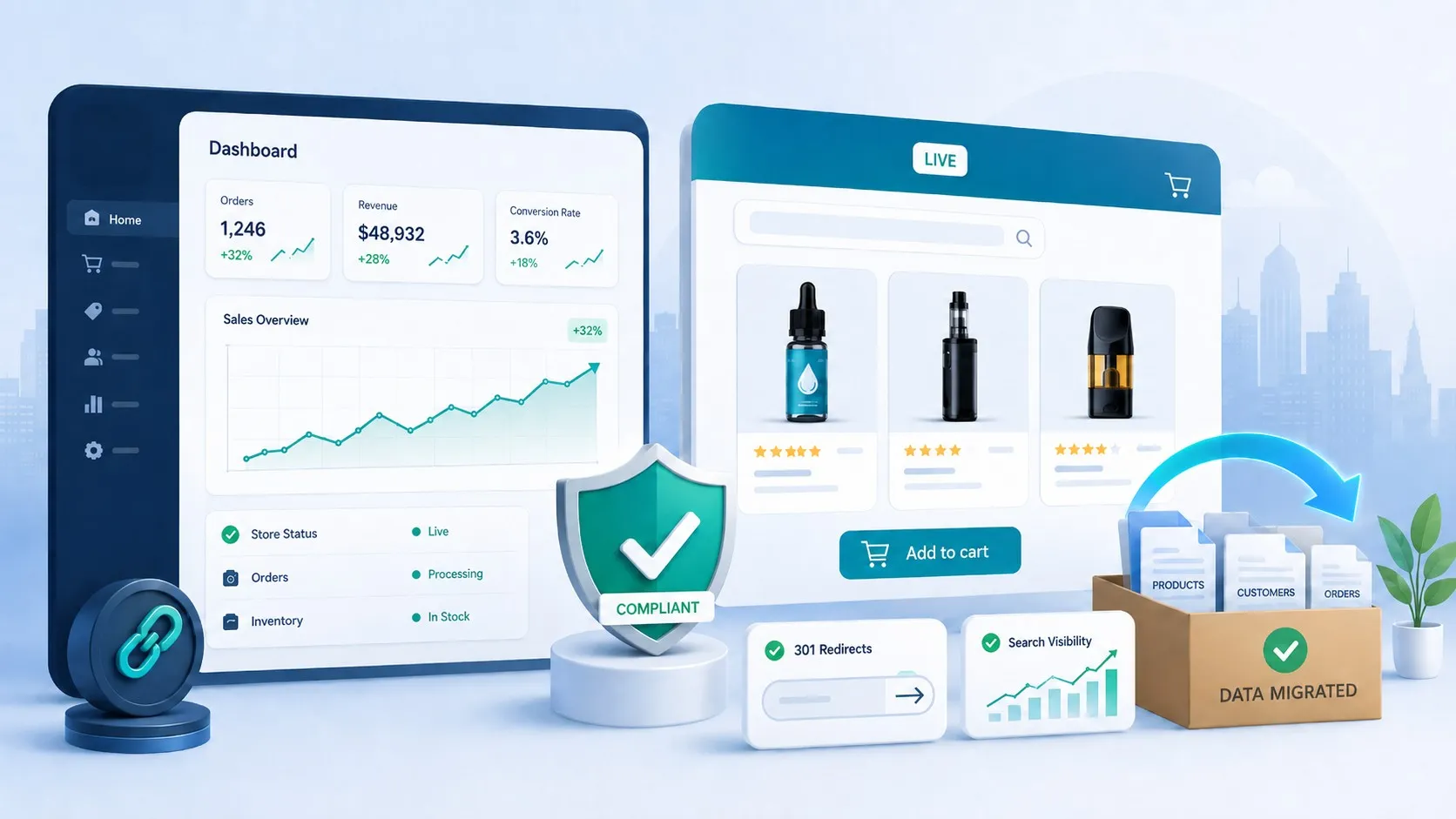
Learning how to setup a Shopify store gives you direct control over your brand and customer experience. Unlike marketplace platforms where you compete for visibility, your Shopify store is entirely yours to build, customize, and scale according to your business vision.
Summary
- Account creation – Create your account, enable security, and configure essential settings in minutes
- Design customization – Select and customize themes to match your brand identity
- Product setup – Add products with compelling descriptions, images, and pricing
- Payment and shipping – Integrate payment processors and configure shipping options
- Domain and launch – Connect your custom domain and go live
- Optimization – Implement SEO, test processes, and refine based on data
What You Need Before Starting Your Shopify Store Setup
Preparation streamlines your setup and prevents delays.
Essentials to Gather
Your business name, address, and tax identification number. Sales tax permits for states where you’ll collect tax. Product details, including names, descriptions, pricing, and inventory counts. High-quality product photography showing multiple angles and lifestyle shots. SKU codes for tracking. Your logo, brand colors, and typography are finalized.
Creating Your Shopify Account and Initial Configuration
Account setup takes less than 15 minutes and establishes your foundation.
Navigate to Shopify’s website and click “Start free trial.” Enter your email, create a strong password, and choose your unique store name. Answer questions about your business for feature recommendations.
Enable two-factor authentication in profile settings immediately. This prevents unauthorized access even with a password compromise. Save recovery codes securely.
Configure Settings > General with your complete business address, contact information, and store currency. Currency selection affects price display and cannot be changed easily after sales begin. Set the timezone to match your location for accurate timestamps and analytics.
Choosing and Customizing Your Store Theme
Your theme influences first impressions and shopping behavior.
Evaluate themes based on your product type and customer journey. Fashion stores benefit from image-heavy layouts while technical products need specification space. Preview themes on desktop and mobile before selecting. Free themes like Dawn provide professional designs for most businesses.
Access Online Store > Themes > Customize to modify colors, upload your logo, and adjust typography. Configure homepage sections strategically with best-sellers, promotions, and reviews. Create logical navigation with clear categories.
Test customization on actual mobile devices. Verify images load quickly, text remains readable, and buttons are easily tappable. Enable sticky navigation and prominent search icons for better mobile usability.
Adding Products and Building Your Catalog
Product pages directly impact conversion rates and customer satisfaction.
Navigate to Products > Add Product. Use exact search phrases customers use for product titles—descriptive, under 70 characters, including brand, type, and key features.
Transform features into customer benefits in descriptions. Structure for scannability with short paragraphs and bullet points. Include dimensions, materials, care instructions, and compatibility information.
Include 4-6 high-resolution images showing multiple angles plus lifestyle shots. Optimize file sizes for fast loading while maintaining quality.
Set prices based on costs, overhead, and margins. Enable inventory tracking to prevent overselling. For variations like size or color, create variants with unique SKUs and pricing.
Create collections to group related products by type, price, season, or use case. Set automatic criteria so new products appear in relevant collections.
Edit search engine listing previews with unique meta titles and descriptions. Use descriptive alt text for all images to improve accessibility and search visibility.
Configuring Payment Processing
Payment processing impacts your bottom line through transaction fees and customer trust.
Setting Up Shopify Payments
For merchants in supported countries, Shopify Payments eliminates third-party transaction fees while providing integrated fraud analysis. Navigate to Settings > Payments and click “Complete account setup.” Provide banking details for payouts, business information for tax reporting, and identity verification documents. Verification typically completes within 48 hours.
Alternative Payment Providers
If Shopify Payments isn’t available, Shopify supports over 100 third-party gateways including PayPal and Stripe. Each processes payments securely but adds transaction fees on top of your subscription cost. Consider customers’ preferred payment methods when selecting providers, as offering multiple options increases conversion rates.
Payment Security Considerations
All Shopify stores include SSL certificates encrypting customer data during transmission. Display trust badges from payment processors near checkout buttons to reassure customers. Test payment gateway integration thoroughly before launch to ensure smooth processing.
Establishing Shipping Strategies
Transparent shipping costs influence purchase decisions, with unexpected fees causing 48% of cart abandonments.
Creating Shipping Zones and Rates
Navigate to Settings > Shipping and delivery to define where you ship and associated costs. Create zones for different geographic regions with unique rates.
Flat Rate Shipping charges the same amount regardless of order size. Calculate by averaging shipping costs across typical orders.
Weight-Based Shipping calculates charges based on cart weight, more accurately reflecting actual costs. Set weight tiers with corresponding prices.
Carrier-Calculated Rates (available on plans above Basic) pull current pricing from USPS, UPS, or FedEx, showing exact costs based on customer location.
Free Shipping Strategies
Implement minimum order thresholds that encourage larger purchases while covering shipping costs through increased order values. Calculate your average order value, then set your free shipping threshold 20-30% higher. Test free shipping on specific collections rather than store-wide to protect margins.
Shipping Protection and Insurance
Offer shipping insurance for high-value or fragile items through apps like Route or ShipStation. Configure package weights accurately to generate correct labels and avoid carrier surcharges.
Setting Up Tax Collection
Shopify automates sales tax calculation but requires proper configuration based on your circumstances.
Understanding Tax Obligations
Your physical presence (nexus) determines where you must collect sales tax. Register for sales tax permits in states where you have nexus and obtain your tax ID number. Navigate to Settings > Taxes and duties to manage collection. Shopify automatically calculates rates based on customer locations once you enable collection for specific regions.
For international sales, configure VAT for European customers or GST for Australia and Canada. Create customer accounts with tax-exempt status for qualified buyers like nonprofits.
Building Essential Store Pages
Beyond product pages, essential pages build trust and reduce support inquiries.
Creating Your About Page
Share your founding story, mission, and values authentically. Include photos of your team or workspace to create personal connections. Address customer pain points your business solves.
Contact and Policy Pages
Include multiple contact methods with business hours and expected response times. Detail shipping timeframes, return eligibility periods, and refund processing times in clear policy pages. Use Shopify’s templates for privacy policy and terms of service, customizing them to reflect your specific practices.
Connecting Your Custom Domain
Professional domains eliminate “myshopify.com” while strengthening brand identity. Domains cost $13-15 annually.
Purchasing and Connecting Domains
Buy domains directly through Shopify (Settings > Domains > “Buy new domain”) for seamless integration. .com domains remain most recognizable. If connecting an existing domain, update DNS settings at your registrar following Shopify’s instructions. DNS propagation completes within 24-48 hours. Shopify automatically issues free SSL certificates for custom domains.
Testing Your Store Before Launch
Thorough testing prevents costly mistakes and ensures smooth operations from launch.
Running Test Orders
Enable test mode in Settings > Payments by activating the Bogus Gateway. Place test orders using credit card “1” for successful transactions, “2” for declined payments, and “3” for errors. Test the complete journey from browsing through checkout completion, verifying cart functionality, discount codes, and order confirmation emails.
Device and Browser Testing
Access your store on multiple smartphones, tablets, and browsers (Chrome, Firefox, Safari, Edge). Test navigation, search, cart additions, and checkout on actual mobile devices. Verify automated emails send correctly with proper formatting across email clients.
Optimizing for Search Engines
SEO best practices during setup are easier than retrofitting later.
On-Page Optimization
Include primary keywords naturally in heading tags, body copy, and meta descriptions on your homepage. Write meta descriptions under 160 characters encouraging clicks from search results. Use descriptive, keyword-rich product titles matching search intent.
Write unique product descriptions exceeding 300 words when possible. Add unique descriptions to collection pages explaining what makes each collection special. Optimize collection URLs, titles, and meta descriptions carefully.
Technical SEO
Submit your sitemap through Google Search Console and Bing Webmaster Tools. Monitor page load speeds and optimize images to maintain fast load times. Implement structured data markup for products and reviews to potentially earn rich snippets in search results.
Launching Your Store
Navigate to Online Store > Preferences and uncheck “Password protect your store.” Save changes, and your store becomes publicly accessible.
Announcement and Monitoring
Plan announcements across email, social media, and your business website. Consider offering a limited-time launch promotion to incentivize early purchases. Monitor your store closely during the first week, responding quickly to any issues. Watch for broken links, payment errors, or checkout problems. Review analytics daily to understand traffic sources and popular products.
Post-Launch Store Management
Successful stores evolve continuously based on customer behavior and market trends.
Regular Updates and Optimization
Update your store regularly with new products, refreshed photography, and seasonal content. Review analytics weekly, tracking sales trends, conversion rates, and average order values. Identify best-performing products and traffic sources, then optimize accordingly.
Customer Feedback and Testing
Encourage customer feedback through post-purchase emails and review requests. Respond to all feedback promptly, addressing concerns and demonstrating you value opinions. Test different photography styles, description formats, and pricing strategies. Small incremental improvements compound into significant performance gains.
Essential Apps to Enhance Your Store
Choose apps strategically to avoid slowing your store or complicating management.
- Email Marketing Apps like Klaviyo or Omnisend enable abandoned cart recovery, post-purchase follow-ups, and personalized recommendations, typically paying for themselves through recovered sales.
- Review Apps like Judge.me or Loox collect and display customer reviews prominently on product pages. Photo reviews showing real customers with your products prove particularly persuasive.
- Inventory Apps like Katana ERP sync inventory across channels, prevent overselling, and automate reordering when stock runs low.

Building Your Marketing Foundation
Develop strategies that attract qualified traffic and convert visitors into buyers.
Social Media and Content
Establish profiles on platforms where your target customers spend time. Post consistently, mixing product showcases with behind-the-scenes content and educational resources. Develop blog content addressing customer questions, optimizing posts for search engines by targeting specific keywords.
Paid Advertising and Email
Start with small budgets testing different platforms and ad formats. Track performance meticulously, calculating cost per acquisition and return on ad spend. Build your email list from day one, offering signup incentives and segmenting based on customer behavior for targeted campaigns.
Advanced Features to Implement After Launch
Once your foundation performs well, explore advanced features that scale operations.
- Customer Accounts and Loyalty Programs track order history and save shipping information, encouraging repeat purchases. Loyalty programs reward frequent customers with points or discounts, increasing lifetime value.
- Subscription Products stabilize cash flow through recurring revenue. Apps like Recharge enable flexible subscription options for products customers need regularly.
- Wholesale and International Expansion diversify revenue streams. Create separate wholesale channels with different pricing and minimums. Use Shopify Markets to simplify international selling with currency conversion and localized checkout.
Key Takeaways
- Preparation accelerates setup – gather business information and assets before beginning
- Mobile optimization is critical – most traffic arrives via mobile devices
- Testing prevents costly mistakes – systematically test checkout and payment handling
- SEO requires ongoing attention – optimize continuously rather than one-time setup
- Post-launch optimization drives growth – evolve based on metrics and customer feedback
Conclusion
Learning how to setup a Shopify store transforms from overwhelming to manageable when you follow a structured approach. By completing each phase thoroughly, you establish a professional foundation supporting long-term growth. Focus on fundamentals during setup—clear value propositions, intuitive navigation, compelling products, and seamless checkout—then refine through continuous testing and feedback. Need expert guidance with your Shopify store setup? Our team specializes in creating high-converting stores tailored to your business needs.
Frequently Asked Questions
How Much Does It Cost to Set Up a Shopify Store?
Setting up a Shopify store costs $39 monthly for the Basic plan, plus optional expenses like themes ($0-350), apps ($0-100+ monthly), and domain names ($13 annually). You can launch with minimal investment using free themes and apps, scaling spending as revenue grows.
Can I Set Up a Shopify Store Without Technical Skills?
Yes, Shopify is designed for non-technical users with visual editors, drag-and-drop customization, and no coding requirements. Most store owners successfully launch without developers, though complex customizations may benefit from professional assistance for optimal results.
How Long Does It Take to Set Up a Complete Shopify Store?
A basic functional store setup takes 4-6 hours spread across 2-3 days, including account creation, theme selection, and adding initial products. Comprehensive setup with branding, content creation, and thorough testing typically requires 2-3 weeks before public launch.
Should I Start With Shopify Payments or Third-Party Processors?
Shopify Payments offers the best rates with no additional transaction fees for merchants in supported countries, making it the recommended choice when available. Third-party processors work well as alternatives or supplements for accepting specialized payment methods.
What Products Sell Best on Shopify Stores?
Niche products with clear differentiation and adequate profit margins perform best, particularly items like custom apparel, specialty food products, handmade goods, beauty products, and home decor. Success depends more on marketing execution and customer service than product category alone.
How Do I Handle Sales Tax on My Shopify Store?
Enable automatic tax calculation in Settings > Taxes after obtaining required tax permits for states where you have sales tax nexus. Shopify calculates appropriate rates based on customer locations, though consultation with tax professionals ensures full compliance as you expand.
Can I Migrate My Existing Store to Shopify?
Yes, Shopify supports migrations from most platforms using built-in tools or apps like Cart2Cart. Plan migrations carefully to preserve SEO value through proper redirects, and consider professional migration services for complex stores with extensive product catalogs or customizations.
What Apps Should I Install Immediately After Setup?
Focus on essentials first including email marketing (Klaviyo), customer reviews (Judge.me), and analytics (Google Analytics). Avoid installing too many apps initially, adding specialized tools only after identifying specific needs through store operation and customer feedback.