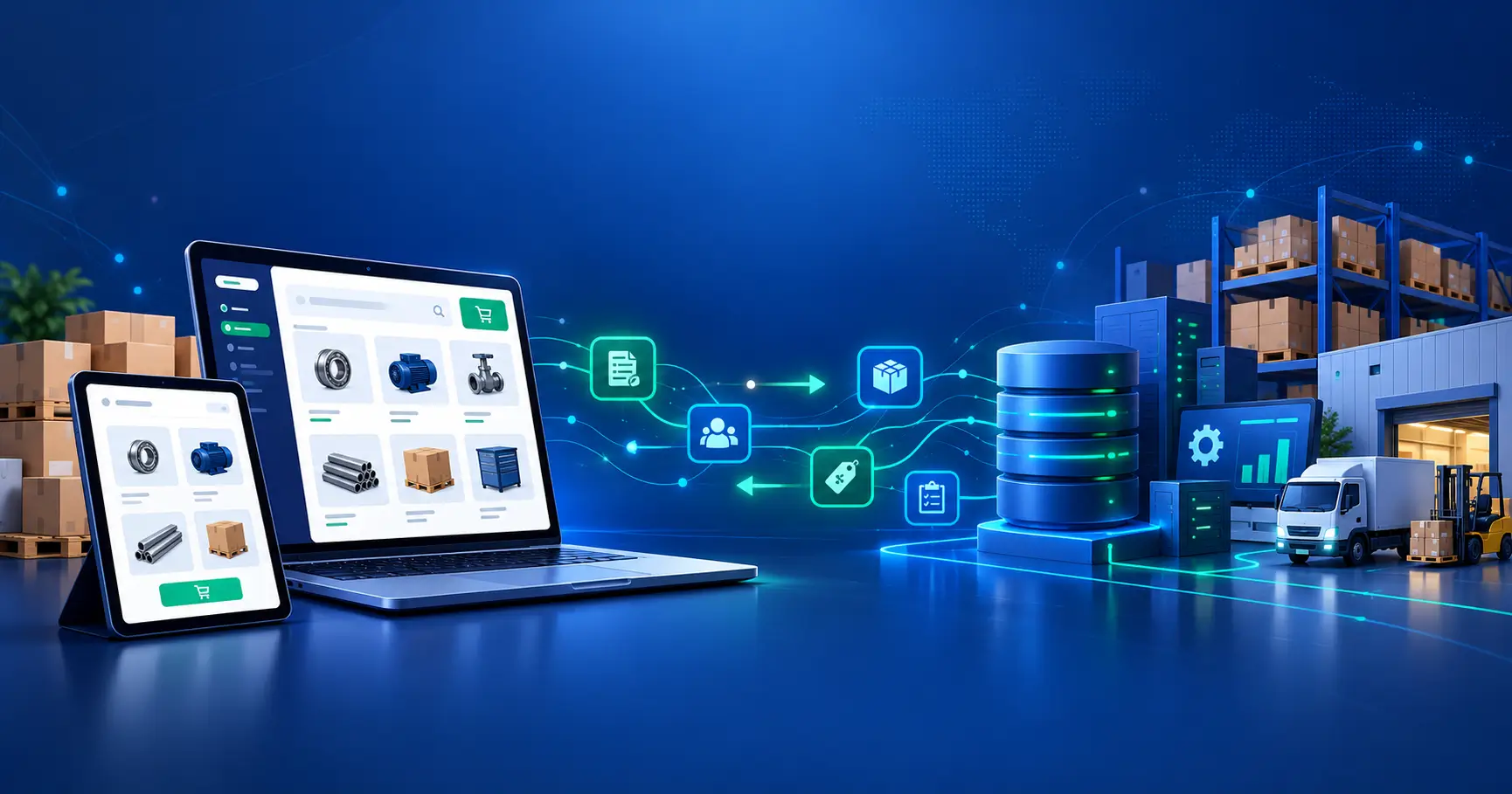
Managing a growing eCommerce store means handling hundreds of repetitive tasks daily—tagging customers, updating inventory, processing refunds, and monitoring fraud alerts. These manual processes drain time, introduce errors, and prevent you from focusing on strategic growth.
Shopify Flow triggers solve this problem by automating store operations based on specific events. Whether you’re processing your first order or managing thousands of transactions monthly, understanding how to start a workflow from Shopify store events transforms how you operate.
Summary
- Understand Shopify Flow triggers and how they initiate automated workflows based on store events
- Learn practical automation examples for orders, inventory, customer tags, and fraud prevention
- Discover trigger-action combinations that reduce manual work and improve operational efficiency
- Explore advanced workflows including multi-condition logic and third-party app integrations
- Implement best practices for testing, monitoring, and optimizing your automation strategy
What Are Shopify Flow Triggers?
Shopify Flow triggers are event-based signals that automatically initiate workflows when specific conditions occur in your store. Think of triggers as the “when this happens” part of your automation strategy.
Every trigger monitors your store for particular events—a new order placement, inventory level change, customer account creation, or product update. When the monitored event occurs, Flow evaluates whether the trigger conditions are met and launches the corresponding workflow.
How Triggers Differ From Actions
The shopify flow documentation triggers actions relationship works like a chain reaction. Triggers detect events and start workflows, while actions execute the actual tasks—sending emails, adding tags, creating tasks, or updating records. A single trigger can initiate multiple sequential actions, creating sophisticated automation sequences without coding.
Types of Events That Activate Triggers
Shopify Flow supports triggers across several categories:
- Order-based triggers monitor purchase events including order creation, fulfillment, cancellation, and payment status changes. Understanding how Shopify Payments works helps you leverage payment-related triggers effectively. These handle the majority of shopify order workflow automation needs.
- Customer triggers track account creation, profile updates, spending thresholds, and behavioral patterns. These enable personalized customer journeys and segmentation.
- Inventory triggers watch stock levels, variant availability, and product updates. Critical for preventing overselling and managing supply chains.
- Marketing triggers respond to campaign engagement, abandoned carts, and promotional activity. Discover how to recover abandoned carts on Shopify using Flow’s automated follow-up sequences. These connect automation to your growth initiatives.
Core Components of Shopify Flow Triggers
Trigger Conditions and Logic
Each trigger includes conditional logic that determines whether a workflow should run. Simple conditions check single values—”order total exceeds $500″—while compound conditions combine multiple criteria using AND/OR operators.
For example, a high-value order workflow might require three conditions: order total above $1000 AND, customer is VIP tagged AND shipping destination is domestic. All three must be true for the workflow to execute.
| Logic Type | Use Case | Example |
| Single condition | Basic filtering | Order total > $100 |
| AND logic | Strict requirements | VIP customer AND first purchase |
| OR logic | Multiple pathways | Tag = “wholesale” OR order count > 50 |
| Nested conditions | Complex scenarios | (Order > $500 AND location = US) OR (Customer tag = “priority”) |
Available Data Objects
Shopify Flow triggers provide access to specific data objects relevant to the initiating event. An order trigger exposes order total, line items, customer details, shipping address, and payment method. This data populates variables you can reference throughout the workflow.
Understanding which data objects each trigger provides is critical for building effective automations. A customer creation trigger won’t have order history data, while an order fulfillment trigger includes tracking information unavailable at order creation.
Essential Shopify Flow Examples for Store Automation
Automating High-Value Order Notifications
When customers place large orders, your team needs immediate visibility to prioritize fulfillment and ensure exceptional service.
Trigger: Order created
Condition: Order total is greater than $500
Action: Send Slack notification to fulfillment channel with order details and customer information
This shopify flow example ensures your team never misses high-value transactions requiring white-glove treatment. For dropshipping businesses, learn how to fulfill orders on Shopify dropshipping to streamline your order processing.
Tagging Customers Based on Purchase Behavior
Customer segmentation drives personalized marketing, but manual tagging doesn’t scale. Flow automates this entirely.
Trigger: Order created
Condition: Customer’s total number of orders equals 1
Action: Add “First-time buyer” tag to customer profile
Expand this concept to create behavioral segments—tag customers who exceed spending thresholds, purchase specific product categories, or reach loyalty milestones. These tags power targeted email campaigns and personalized experiences without manual data entry.
Managing Low Inventory Alerts
Stockouts cost sales and damage customer trust. Automated inventory monitoring prevents this.
Trigger: Inventory quantity changed
Condition: Inventory level falls below 10 units
Action: Send email to inventory manager with product details and current stock level
This workflow provides early warning before you’re completely out of stock, allowing time for reordering. For comprehensive stock control, implement robust Shopify inventory management practices alongside Flow automation.
Fraud Prevention Workflows
High-risk orders require manual review, but identifying them manually wastes time and misses red flags.
Trigger: Order created
Condition: Order risk level is high
Action: Cancel order and send email to customer requesting identity verification
For a less aggressive approach, add a “fraud-review” tag instead of auto-canceling, then route these orders to your fraud prevention team for manual assessment. This balances security with customer experience.
Building Advanced Shopify Order Workflow Automations
Multi-Step Approval Processes
Complex operations often require approval chains before executing actions. Flow handles this through conditional branching.
Workflow: Refund approval for orders over $200
- Trigger: Refund requested
- Condition: Refund amount exceeds $200
- Action: Create task in project management tool assigned to manager
- Wait: Until task marked complete
- Action: Process refund and notify customer
This creates accountability while maintaining automation speed for standard requests under the threshold.
Cross-Channel Customer Journey Automation
Connect Shopify Flow triggers to email marketing, SMS platforms, and customer service tools for cohesive experiences.
Workflow: VIP customer onboarding sequence
- Trigger: Customer total spent exceeds $1000
- Action: Add “VIP” tag to customer
- Action: Send personalized email with exclusive discount code
- Action: Create contact in email marketing platform with VIP segment
- Action: Notify customer success team via Slack
This transforms a spending milestone into a multi-channel engagement opportunity that strengthens customer relationships.
Dynamic Pricing and Promotion Management
Automate promotional pricing based on inventory levels or seasonal events.
Trigger: Inventory quantity changed
Condition: Inventory level exceeds 100 units
Action: Apply 15% discount to product and tag “Overstock clearance”
When inventory normalizes, a reverse workflow removes the discount automatically, maintaining margin without manual price management.
Shopify Flow Triggers by Category
| Category | Common Triggers | Primary Use Cases |
| Orders | Order created, Order fulfilled, Order cancelled, Payment captured | Order routing, fulfillment automation, revenue tracking |
| Customers | Customer created, Customer updated, Total spent threshold | Segmentation, loyalty programs, lifecycle marketing |
| Inventory | Quantity changed, Product updated, Variant added | Stock alerts, pricing automation, supplier notifications |
| Products | Product created, Product published, Collection updated | Catalog management, SEO automation, merchandising |
Connecting Flow Triggers to Third-Party Apps
Extending Automation With Shopify App Integrations
Shopify Flow integrates with numerous apps to expand automation capabilities beyond native Shopify functions. For custom automation needs, explore Shopify app development service to build tailored solutions. Popular connectors include email marketing platforms, customer service tools, inventory management systems, and accounting software.
For example, connect Flow to your email service provider to automatically sync customer segments based on purchase behavior. Mailchimp Shopify integration enables seamless customer segmentation—when a customer reaches a spending threshold, Flow triggers the workflow, tags the customer in Shopify, and updates their profile in your email platform with the corresponding segment.
Building Custom API Workflows
For advanced use cases, Flow supports HTTP requests that connect to external APIs. This enables workflows that update internal databases, trigger webhooks, or communicate with proprietary systems. Need help implementing complex integrations? Hire Shopify developers with Flow automation expertise.
A B2B wholesaler might use this to sync approved orders directly to their ERP system, eliminating manual data entry between platforms. For enterprise integrations, a Shopify EDI connector streamlines complex B2B transactions. The workflow fires when an order is tagged “wholesale-approved,” formats the order data, and posts it to the ERP API endpoint.
Best Practices for Implementing Flow Triggers
Start Simple and Scale Gradually
Begin with high-impact, low-complexity workflows before tackling sophisticated automation. A basic customer tagging workflow delivers immediate value and helps you understand how triggers and actions interact. Creating a strategic Shopify development plan helps you prioritize automations that align with business growth.
Document each workflow’s purpose, trigger conditions, and expected outcomes. This creates institutional knowledge and makes troubleshooting easier when workflows don’t behave as expected.
Test Workflows in Development Stores
Never deploy untested workflows directly to production. Create test scenarios in a development store that simulate the trigger conditions, then verify each action executes correctly.
For order workflows, place test orders that meet and don’t meet your conditions. Confirm that qualifying orders trigger the workflow while non-qualifying orders are ignored. Check that all actions—notifications, tags, data updates—complete successfully.
Monitor Performance and Adjust Conditions
Shopify Flow provides execution logs showing when workflows run, which conditions were evaluated, and what actions were taken. Review these logs regularly to identify patterns.
If a workflow triggers too frequently, tighten conditions. If it rarely activates despite meeting a real need, your conditions might be too restrictive. Adjust thresholds and logic based on actual store behavior.
Common Mistakes to Avoid
- Over-automating too quickly creates complexity that’s difficult to manage. Add workflows incrementally rather than building dozens simultaneously.
- Ignoring edge cases causes unexpected behavior. Consider scenarios where data might be missing or customers behave unpredictably.
- Forgetting to document leaves your team unable to troubleshoot when you’re unavailable. Maintain clear records of each workflow’s logic and purpose.
| Mistake | Impact | Solution |
| No testing before launch | Workflows fail in production | Use development store testing |
| Overly broad conditions | Actions fire incorrectly | Narrow trigger conditions |
| Missing error notifications | Problems go undetected | Add failure alerts to critical workflows |
| Duplicate workflows | Conflicting actions | Audit existing automations before adding new ones |
Measuring the Impact of Your Automation Strategy
Key Metrics to Track
Quantify automation value by measuring time saved, error reduction, and revenue impact. Use Shopify professional reports to track these metrics and gain deeper insights into automation performance.
- Time savings calculate hours previously spent on manual tasks now handled by workflows. If tagging customers manually took 2 hours weekly and automation eliminates this, that’s 104 hours annually.
- Error reduction tracks mistakes prevented through consistent automated processes. Manual order routing might mis-route 2% of orders, while automation achieves near-perfect accuracy.
- Revenue impact measures conversions improved through faster response times. If abandoned cart workflows recover even 5% of abandoned sales, calculate the dollar value.
Continuous Improvement Framework
Schedule quarterly reviews of all active workflows. Analyze execution logs to identify:
- Workflows that rarely trigger and might need condition adjustments
- Actions that frequently fail and require troubleshooting
- Opportunities to expand successful workflows to additional use cases
- Redundant workflows that can be consolidated
Partner with experts offering Shopify optimization solutions to maximize your automation performance and store efficiency.
Key Takeaways
- Shopify flow triggers automatically initiate workflows when specific store events occur, eliminating manual intervention for repetitive operational tasks
- Effective automation requires understanding trigger conditions, available data objects, and the relationship between triggers and actions in your workflows
- Start with high-impact examples like high-value order notifications, customer tagging, and inventory alerts before building complex multi-step automations
- Test all workflows thoroughly in development environments and monitor execution logs to ensure reliable performance
- Measure automation impact through time savings, error reduction, and revenue metrics to justify expansion and identify optimization opportunities
Conclusion
Shopify flow triggers transform store operations from reactive manual processes into proactive automated systems. By implementing the workflows covered here—from basic customer tagging to advanced multi-channel journeys—you eliminate operational bottlenecks and create capacity for strategic growth initiatives. Ready to take it further? Learn how to build a fully automated Shopify store that runs with minimal manual intervention.
The key is starting with foundational automations that deliver immediate value, then systematically expanding as you gain confidence with the platform. Every workflow you build compounds efficiency gains and reduces the operational burden on your team.
Ready to build automation that scales with your business? Explore our complete Shopify automation guide or talk to our Shopify partner experts to design custom workflows for your unique requirements.
FAQs
What Is a Shopify Flow Trigger?
A Shopify Flow trigger is an event-based condition that automatically starts a workflow when specific actions occur in your store, such as order creation, inventory changes, or customer updates. Triggers monitor store activity and initiate automated responses without manual intervention.
How Do I Start a Workflow From Shopify Store Events?
Navigate to Settings > Apps and sales channels > Flow in your Shopify admin, then click Create workflow. Select a trigger from available options like order created or inventory updated, define conditions that must be met, and add actions that execute when conditions are satisfied.
Can Shopify Flow Integrate With External Apps?
Yes, Shopify Flow connects with numerous third-party apps through native integrations and custom HTTP requests. You can trigger workflows in email platforms, project management tools, accounting software, and any service with an API endpoint that accepts webhook data.
What Are Common Shopify Flow Examples for Beginners?
New users should start with customer tagging based on order count, high-value order notifications sent to fulfillment teams, low inventory alerts to prevent stockouts, and automatic customer segmentation based on spending thresholds. These provide immediate value with minimal complexity.
Does Shopify Flow Work for B2B Stores?
Absolutely. B2B operations benefit significantly from workflow automation including wholesale order routing, custom pricing application, purchase approval processes, and integration with ERP systems. Flow handles complex B2B requirements through multi-step conditional workflows and external system connections.
How Many Workflows Can I Create in Shopify Flow?
Shopify Plus merchants have no limit on the number of active workflows, though practical management typically keeps this under 50 to maintain clarity. Each workflow can contain unlimited actions and conditions, allowing sophisticated automation within individual workflows rather than requiring dozens of separate ones.