You’re not ready to go live yet — but your store is visible to anyone who stumbles across the URL. Maybe you’re still building, rebranding, or testing products with a select group of customers. Whatever the reason, knowing how to hide your Shopify store from the public is a practical skill every store owner should have.
This guide covers every method available, when to use each one, and what to watch out for along the way.
Summary
- Shopify’s built-in password protection is the fastest way to hide your store from the public
- The Pause and Build plan lets you hide your storefront while keeping your admin access active
- IP restriction and app-based locking offer granular access control for specific use cases
- Hiding your store doesn’t have to hurt your SEO if you take the right precautions
- You can stay connected with customers through your password page and email while the store is hidden

There are more legitimate reasons to hide a Shopify store than most people think. Understanding your use case helps you choose the right method.
- Pre-launch preparation. You’re building the store but don’t want partial or unfinished pages visible to the public before launch day.
- Rebranding or redesign. Major changes to your store’s look and feel are underway, and you’d rather reveal the new version all at once.
- Seasonal or inventory pauses. You’re between product drops, restocking, or temporarily stepping away from the business.
- Market testing. You want to share the store with a specific group of customers — wholesale buyers, beta testers, or press contacts — without opening it to everyone.
- Maintenance. Something broke, or you’re making significant back-end changes that could affect the customer experience.
Now that we’ve covered the reasons, let’s look at each method in detail.
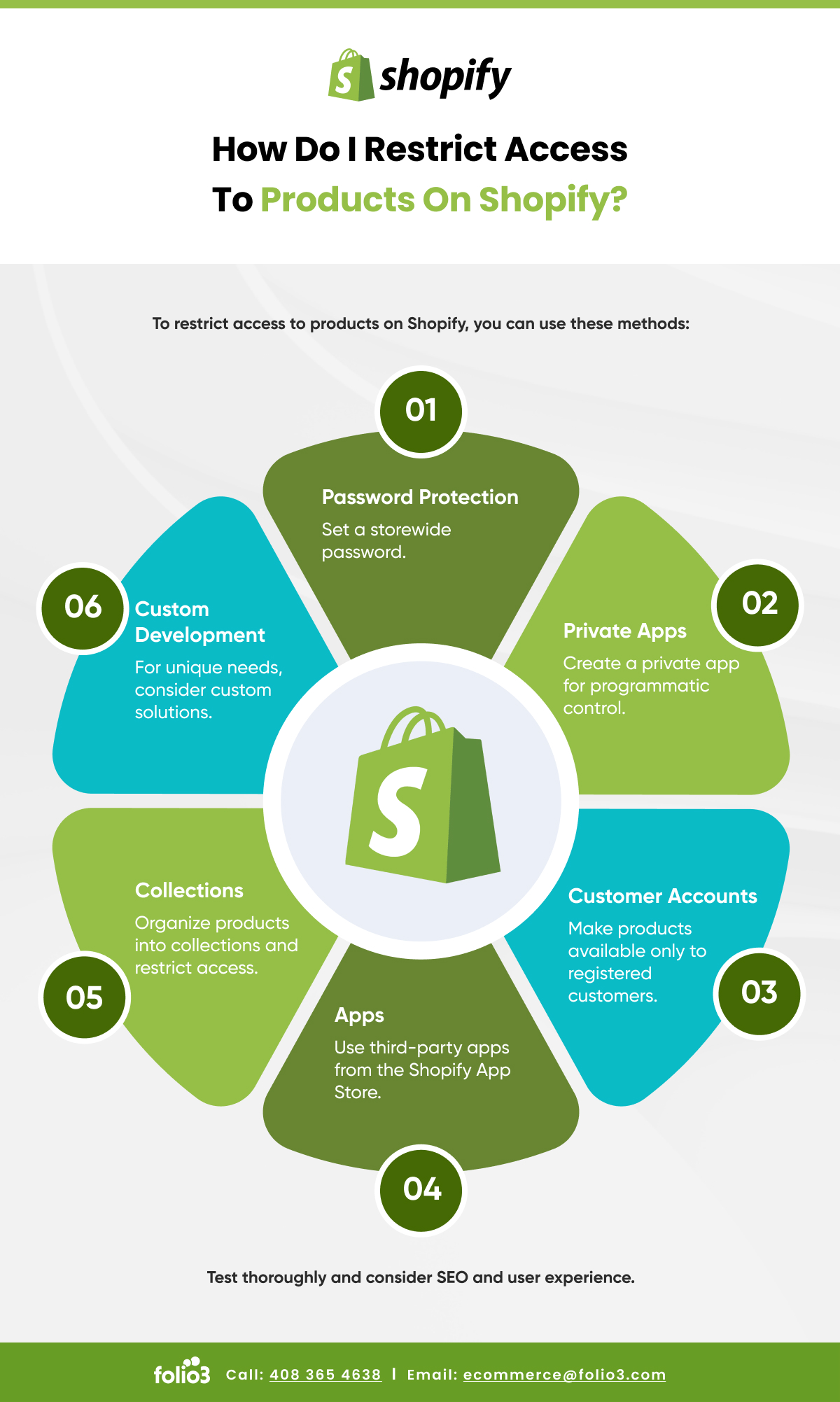
Method 1: Enable Password Protection (Fastest Option)
Password protection is Shopify’s built-in tool for hiding your store from casual visitors. Anyone who visits your storefront sees a simple page asking for a password. Only people you share the password with can view your store.
How to Enable Password Protection on Shopify
- Log into your Shopify Admin
- Go to Online Store → Preferences
- Scroll to the Password protection section
- Check the box: “Restrict access to visitors with the password”
- Enter a password (make it different from your admin password)
- Add an optional message for visitors (e.g., “We’re launching soon — enter the password to get early access”)
- Click Save
That’s it. Your store is now hidden from anyone without the password.
Customizing Your Password Page
A generic password page is a missed opportunity. Shopify lets you customize it to match your branding and even collect leads.
- Go to Online Store → Themes → Customize
- Select Password page from the page dropdown
- Upload your logo, update the copy, and adjust colors
- Add an email signup form to capture interested visitors before launch
- Click Save
A well-designed password page can build anticipation and grow your email list while your store is hidden — turning a limitation into a marketing asset.
Method 2: Pause and Build Plan (Best for Extended Breaks)
If you want to hide your Shopify store from public view for an extended period while continuing to work on it, the Pause and Build plan is the most practical option.
At a reduced monthly rate ($9/month as of current pricing), you keep full admin access, can continue editing your store, but your storefront goes offline — customers cannot browse or purchase.
How to Activate the Pause and Build Plan
- Go to Settings → Plan in your Shopify Admin
- Click Pause or deactivate store
- Select Pause and Build
- Confirm the plan change
Note: You cannot process new orders while on this plan, but you can continue fulfilling existing orders and making store changes.
| Method | Store Visible? | Orders Possible? | Admin Access? | Cost |
| Password Protection | No (with password) | Yes | Yes | Included in plan |
| Pause and Build | No | No | Yes | ~$9/month |
| Full Deactivation | No | No | No | None |
| IP/App Restriction | Partially | Configurable | Yes | App cost varies |
Method 3: Restrict Access by Customer Group or Page (Advanced)
Sometimes you don’t want to hide your entire store — just parts of it. For example, you might want wholesale pricing pages hidden from retail visitors, or specific product collections locked behind a login.
Shopify apps like Locksmith, Wholesale Lock Manager, and Bold: Customer Pricing allow you to:
- Hide specific products, collections, or pages based on customer tags
- Require login before showing prices or checkout
- Create unique access codes for different customer groups
- Restrict access based on geography or customer account status
This method is especially useful for B2B and wholesale stores where different customers need to see different information.
Method 4: IP Whitelisting (For Development and Testing)
If you’re working with a development team or running market tests with a controlled group, you can restrict access to specific IP addresses. This approach requires either a third-party app or a custom solution via Shopify’s theme code.
IP whitelisting keeps your store visible only to the people at approved IP addresses — everyone else sees a blocked or blank page.
This is more technical than the other methods and generally used in agency or enterprise development environments. For most small to mid-size stores, password protection or the Pause and Build plan is sufficient.
How Hiding Your Store Affects SEO
One of the most common concerns when hiding a Shopify store is what happens to search rankings. Here’s the reality:
Password protection and the Pause plan both add a noindex tag to your storefront, which tells search engines not to index the pages. This means your store pages won’t rank while hidden — but they also won’t be penalized.
When you remove the password or upgrade your plan, pages become indexable again. Your rankings may take a short time to recover, but they should return to their previous position if nothing else has changed.
To protect your SEO during a hidden period:
- Keep your sitemap live and accurate
- Don’t delete pages — just restrict access to them
- Use your password page to maintain some crawlable content
- Avoid long hiding periods if you have significant organic traffic
For stores with established traffic, plan your hidden period carefully. A few days to a few weeks is unlikely to cause lasting damage. Months-long hidden periods during high-traffic seasons are riskier.
Staying Connected with Customers While Your Store Is Hidden
Hiding your store doesn’t mean going dark with your audience. Here’s how to stay visible:
- Email marketing. If you have a subscriber list, send a brief update explaining the situation and what’s coming. A pre-launch email series can actually build anticipation and increase day-one sales.
- Social media. Continue posting on your brand channels. Behind-the-scenes content, teasers, and countdowns keep your audience engaged even when the store isn’t live.
- Password page lead capture. As covered above, use your password page to collect emails from visitors who find your store. These become your earliest leads when you reopen.
Common Mistakes When Hiding a Shopify Store
- Using your admin password as the storefront password. These should always be different.
- Forgetting to inform repeat customers. If you have an active customer base, give them a heads-up before going dark.
- Leaving the store hidden too long without a relaunch plan. Set a clear date to go live — open-ended “temporary” closures often drag on.
- Not customizing the password page. A blank page with just a password field is a missed marketing opportunity.
- Ignoring existing orders. Hiding the store doesn’t pause fulfillment obligations. Make sure open orders are handled before you restrict access.
Looking to sell other people’s products on Shopify without managing your own inventory? Understanding your store visibility settings becomes even more important when coordinating with suppliers.
Comparison of Shopify Store Hiding Methods
| Use Case | Recommended Method |
| Pre-launch setup | Password Protection |
| Temporary break from selling | Pause and Build Plan |
| Rebranding with no timeline | Pause and Build Plan |
| Wholesale-only access | App-Based Locking |
| Developer/agency testing | IP Whitelisting |
| Hiding specific pages only | Locksmith or Similar App |
Key Takeaways
- Password protection is the fastest and simplest way to hide your Shopify store from public view — it takes under two minutes to enable
- The Pause and Build plan is the right choice for longer periods when you still need to work on the store
- You can hide specific pages or product collections without taking down your entire store using apps
- Hiding your store has minimal SEO impact if done for a short period with noindex in place
- Use your hidden period productively — capture leads, refine your offer, and build pre-launch momentum
Conclusion
Hiding your Shopify store from the public is simpler than most people expect. Whether you need a quick password lock before launch, a longer pause during rebranding, or granular access control for wholesale customers, Shopify has a method that fits your situation.
The key is choosing the right tool for your specific need — and using the hidden period strategically rather than letting it drift. Set a relaunch date, capture leads through your password page, and keep your audience warm through email and social.
Need help setting up or optimizing your Shopify store before going live? Get in touch with the Folio3 team for expert Shopify development and configuration support.
Frequently Asked Questions
How Do I Hide My Shopify Store from the Public Without Losing SEO?
Enable password protection in Online Store → Preferences. Shopify automatically adds a noindex tag while the store is hidden. Avoid hiding the store for extended periods during peak traffic seasons to minimize ranking impact.
Can I Hide My Shopify Store for Free?
Password protection is included in all Shopify plans at no extra cost. The Pause and Build plan reduces your monthly cost to approximately $9/month. IP-based restrictions may require paid third-party apps.
Will Hiding My Store Cancel My Shopify Plan?
No. Password protection keeps your current plan active. The Pause and Build plan downgrades your subscription temporarily. Full deactivation is the only option that ends your plan.
Can Customers Still Buy from a Password-Protected Shopify Store?
Yes, if you share the password with them. Customers who have the password can browse and purchase normally. The password page only restricts visitors who don’t have access.
How Do I Pause My Shopify Store Temporarily?
Go to Settings → Plan → Pause or deactivate store, then select Pause and Build. This hides your storefront, prevents new purchases, and reduces your monthly fee while keeping admin access active.