Running a content-heavy WordPress site while managing a full-scale e-commerce operation is a genuine challenge. Most platforms force you to choose: either sacrifice content flexibility for commerce power, or the other way around. The BigCommerce WordPress integration removes that trade-off entirely.
This guide covers how the integration works, what it takes to set it up, what you can configure post-installation, and the scenarios where it makes the most sense for growing businesses.
Summary
- BigCommerce and WordPress integration connect e-commerce back-end power to a content-first front end.
- The official BigCommerce for WordPress plugin is the fastest, most supported setup path.
- Prerequisites include a BigCommerce store, an SSL certificate, and permalink settings adjusted in WordPress.
- Post-setup configuration covers menus, checkout style, currency, and product sync rules.
- The integration works best for content-driven stores, SEO-focused brands, and businesses already invested in WordPress.
- A headless approach via API is available for teams needing full control over the front end.
What Is BigCommerce for WordPress Integration?
The BigCommerce for WordPress plugin connects your WordPress site to a BigCommerce back end, effectively splitting the responsibilities of the two platforms. WordPress manages content, design, and the customer-facing experience. BigCommerce handles the commerce engine: product catalog, order management, checkout, and payment processing.
This setup is often described as a headless commerce architecture, where the front end and back end operate independently but communicate through APIs. It gives merchants the editorial freedom of WordPress without giving up BigCommerce’s robust commerce infrastructure.
The plugin is available for free in the WordPress plugin repository and is officially maintained by BigCommerce.
Why Use BigCommerce and WordPress Integration?
Most e-commerce platforms bundle content and commerce into a single system. That works until it doesn’t. When a store’s content strategy outgrows the limitations of a native blogging tool, or when an existing WordPress site needs to add serious commerce capabilities, a combined platform approach becomes the practical answer.

Content-Commerce Separation
WordPress is the world’s most widely used content management system, powering over 43% of all websites. Its ecosystem of SEO plugins, page builders, and editorial tools is unmatched. BigCommerce brings PCI-compliant checkout, multi-currency support, and a robust app marketplace. Connecting the two means neither side has to compromise.
Scalability Without Platform Switching
As order volumes grow, so do the demands on an e-commerce back end. BigCommerce handles high-traffic catalog management without putting that load on your WordPress server. Product data, inventory, and transactions all live in BigCommerce. WordPress stays lean and focused on rendering content quickly.
SEO and Marketing Advantages
WordPress offers mature SEO tooling through plugins like Yoast SEO and Rank Math. Businesses using BigCommerce for WordPress integration can build content-rich category pages, publish buying guides, and run editorial calendars alongside their store — all on the same domain. That domain authority benefits the store’s organic rankings directly.
Enhanced Security Posture
BigCommerce manages PCI DSS compliance on its end, which removes one of the heavier security obligations from the merchant. The checkout experience is hosted on BigCommerce’s infrastructure, meaning payment data never touches your WordPress server directly. This reduces your compliance scope significantly.
Here is how the two platforms divide responsibilities in a typical integration setup:
| Function | Handled By | Key Benefit |
| Product catalog & inventory | BigCommerce | Scalable, real-time stock management |
| Checkout & payment processing | BigCommerce | PCI-compliant, secure hosted checkout |
| Content, blog & landing pages | WordPress | Full editorial flexibility and SEO tools |
| Design & storefront theming | WordPress | Unlimited theme and page builder support |
| Analytics & reporting | Both | Native BigCommerce reports + GA integration |
| App & plugin ecosystem | Both | BigCommerce apps + WordPress plugin library |
Prerequisites Before You Begin
Before installing the BigCommerce for WordPress plugin, make sure the following are in place. Skipping any of these steps is the most common cause of setup issues.
WordPress Site Requirements
- Permalink structure: Go to Settings > Permalinks in your WordPress admin and select Post Name. The plugin will not function correctly without this setting.
- SSL certificate: Required if you are using embedded checkout. Without SSL, browsers will flag the checkout page as insecure.
- WordPress version: Ensure you are running a reasonably current version of WordPress to guarantee plugin compatibility.
BigCommerce Account Requirements
- Active BigCommerce store: You need a live or trial BigCommerce account. If you do not have one, you can create a trial store directly during the plugin setup flow.
- API credentials: The plugin will prompt you to connect your account. You can do this via direct login or by entering API credentials from your BigCommerce dashboard under Settings > Connections.
How to Set Up the BigCommerce for WordPress Integration
There are two ways to connect BigCommerce with WordPress. The plugin route is the standard approach for most merchants. The API-based manual method is for developers who need more control over how product data is rendered.
Method 1: Plugin Installation (Recommended)
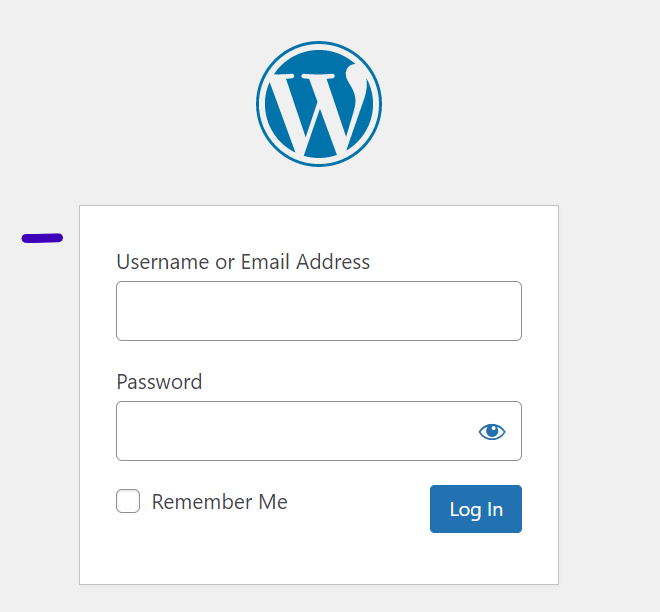
Step 1: Access your WordPress admin by navigating to your site URL followed by /wp-admin and logging in.
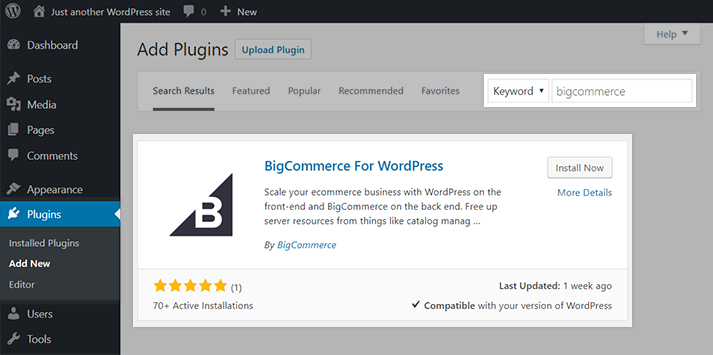
Step 2: Go to Plugins > Add New, search for BigCommerce, and install the BigCommerce for WordPress plugin. Click Activate once installed.
Step 3: A new BigCommerce menu item will appear in your dashboard. Go to BigCommerce > Welcome and click Get Started.

Step 4: Connect your BigCommerce account. If you have an existing account, select Connect my account. If not, create a new trial account from this screen.
Step 5: Set a Channel Name. This is the label BigCommerce uses to identify your WordPress site within its system. It is used for order monitoring and product list management.
Step 6: Choose your product listing method. You can either list all products automatically or manually select which products appear on the WordPress side.
Step 7: Publish your store. Your BigCommerce products will now be accessible on your WordPress site through a dedicated storefront page.
Method 2: API-Based Manual Integration
This method uses BigCommerce’s REST API and a PHP library to pull product data directly into a custom WordPress page template. It requires developer-level experience and is suited to teams building a fully custom storefront.
The manual approach offers complete control over how product data is fetched, transformed, and displayed. However, it also means taking on responsibility for API maintenance, error handling, and future compatibility when BigCommerce updates its API.
If you are considering this path, working with an experienced BigCommerce development team is the most efficient route.
Comparing both methods at a glance:
| Factor | Plugin Method | Manual API Method |
| Setup time | Under 1 hour | Several days to weeks |
| Technical skill required | Low (non-developer) | High (PHP/API experience) |
| Customization level | Moderate | Full control |
| Maintenance overhead | Low (plugin updates) | High (API versioning) |
| Best for | Most merchants | Custom-built storefronts |
Post-Setup Configuration
Completing the installation is only the starting point. The BigCommerce for WordPress integration gives you a set of configuration options that directly affect how your store behaves. Getting these right before going live saves significant troubleshooting time later.
Storefront Navigation
Add a menu to your WordPress storefront immediately after setup. Go to Appearance > Menus and add the BigCommerce product pages to your primary navigation. Without this, customers may not be able to find your store pages.
Cart and Checkout Settings
Under BigCommerce > Cart & Checkout, choose how you want the checkout to work. Embedded checkout keeps customers on your WordPress domain throughout the purchase. Redirected checkout sends them to your BigCommerce-hosted checkout page. Embedded checkout requires SSL; redirected checkout does not.
Product Sync Rules
Enable automatic product syncing to keep your WordPress site updated whenever you add, edit, or remove products in BigCommerce. You can also set sync frequency and choose which product fields are pulled into WordPress.
Currency and Pricing
Set your selling currency and ensure your pricing displays correctly across both platforms. If you operate in multiple currencies, BigCommerce’s multi-currency support handles conversion on the back end.
Diagnostics and Error Logging
Enable error logging under the Diagnostics section during your initial setup phase. This gives you visibility into any sync failures or API connection issues before they affect customers.
Post-installation configuration checklist:
| Configuration Area | What to Do | Priority |
| Storefront menu | Add BigCommerce pages to WordPress nav menu | High |
| Checkout type | Choose embedded or redirected checkout | High |
| SSL certificate | Verify SSL is active — required for embedded checkout | High |
| Product sync | Enable automatic sync and set frequency | Medium |
| Currency | Set base currency and enable multi-currency if needed | Medium |
| Error logging | Enable during setup and monitor for 2–4 weeks | Low |
When Does the BigCommerce for WordPress Integration Make Sense?
This integration is not the right fit for every business. It is particularly well-suited to specific scenarios where the combined platform approach solves a real problem.
Content-First Brands
Businesses that drive significant traffic through blogging, editorial content, or educational resources will benefit most. The integration lets them monetize that content directly without migrating away from WordPress.
Existing WordPress Sites Adding Commerce
If a business has built substantial domain authority and a WordPress content ecosystem, rebuilding on a standalone e-commerce platform means starting organic search rankings from scratch. Using BigCommerce and WordPress integration preserves that investment while adding commerce capability.
Merchants Who Have Outgrown WooCommerce
WooCommerce works well at smaller scales but can become complex to maintain as catalog size, traffic, and transaction volume grow. Moving commerce to BigCommerce while keeping the WordPress front end is a common upgrade path for merchants in this position. If you’re considering this move, our guide on BigCommerce migration covers what the process involves.
Teams Exploring Headless Commerce
The BigCommerce for WordPress setup is a practical entry point into headless architecture. It introduces the concept of decoupled front end and back end without the full complexity of a custom headless build.
BigCommerce WordPress Integration vs. Full Headless Commerce
The plugin-based integration is often described as semi-headless. WordPress controls the front end, but the plugin handles the API connection automatically. A fully headless setup replaces the plugin with custom-built API calls, giving developers direct control over data fetching, rendering, and caching.
For most merchants, the plugin approach delivers the majority of headless benefits without the engineering overhead. Full headless becomes relevant when a team needs to serve the same product catalog across multiple front ends simultaneously — such as a WordPress site, a mobile app, and a kiosk display.
If you want to go deeper on the architecture side, BigCommerce headless commerce is worth reviewing before committing to a build approach.
| Scenario | Plugin Integration | Full Headless API |
| Single WordPress storefront | Ideal fit | Overkill for most teams |
| Multiple front-end channels | Limited support | Built for this use case |
| Custom checkout experience | Moderate customization | Full control |
| Non-developer team | Self-serviceable | Requires dedicated dev team |
| Time to market | Fast (days) | Slow (weeks to months) |
If you are evaluating the broader BigCommerce ecosystem before committing to this integration, our walkthrough on selling on Amazon through BigCommerce covers how the platform manages multi-channel selling beyond WordPress.
For teams planning a non-standard payment flow alongside their WordPress integration, the BigCommerce custom payment gateway guide is directly relevant.
Key Takeaways
- The BigCommerce WordPress integration lets businesses run WordPress as the front end while BigCommerce handles all commerce back-end operations.
- Plugin installation is the fastest path to a working integration and requires no developer expertise.
- Setting permalink structure and SSL before installation prevents the most common setup errors.
- Post-setup configuration — especially checkout type and product sync — directly affects customer experience.
- The integration suits content-heavy brands, WooCommerce migrants, and teams exploring headless commerce.
Frequently Asked Questions
What Does the BigCommerce WordPress Integration Actually Do?
It connects your WordPress front end to a BigCommerce back end using the official plugin. WordPress displays your store and content while BigCommerce manages products, orders, and checkout. The two platforms communicate through the BigCommerce API.
Is the BigCommerce for WordPress Plugin Free?
Yes. The plugin is free and available in the official WordPress plugin repository. You still need an active BigCommerce plan to use it, and BigCommerce’s pricing applies to your store plan.
Do I Need a Developer to Set Up the BigCommerce and WordPress Integration?
Not for the plugin method. A non-technical user can complete the installation and basic configuration. Developer involvement is needed if you choose the manual API method or want to customize the checkout experience beyond the plugin’s default options.
Can I Use BigCommerce for WordPress Integration with an Existing WordPress Site?
Yes. The plugin installs on any existing WordPress site. Your current content, pages, and theme remain unchanged. The plugin adds BigCommerce product pages and a storefront to your existing site structure.
What Is the Difference Between Embedded and Redirected Checkout?
Embedded checkout keeps customers on your WordPress domain through the entire purchase. Redirected checkout sends them to a BigCommerce-hosted page to complete payment. Embedded requires an SSL certificate. Redirected works without one but changes the URL customers see during checkout.
Does the BigCommerce for WordPress Integration Support Multiple Currencies?
Yes. BigCommerce handles multi-currency natively. You configure currency options in your BigCommerce dashboard and they carry through to the WordPress storefront without additional plugin configuration.
How Does Product Syncing Work Between BigCommerce and WordPress?
The plugin syncs product data from BigCommerce to WordPress on a schedule you control. When you add or edit a product in BigCommerce, those changes push to WordPress automatically during the next sync cycle. Real-time inventory levels update through the API.
Conclusion
The BigCommerce WordPress integration is a practical solution for businesses that need content management depth and commerce infrastructure without compromising either. For content-first brands, WooCommerce migrants, or teams running established WordPress sites, connecting to BigCommerce’s back end through the plugin is a straightforward upgrade that scales with growth.
If you’re ready to explore how this integration fits your specific setup, our team at Folio3 works with businesses across the e-commerce spectrum to design and implement BigCommerce solutions. Book a free consultation to discuss your requirements.