Putting your online store offline temporarily requires more than just flipping a switch. When you need to update your BigCommerce store, fix critical issues, or make significant changes, understanding how to properly manage BigCommerce maintenance mode becomes essential for protecting your SEO rankings, preserving customer trust, and maintaining operational efficiency.
Whether you’re implementing new features, resolving security vulnerabilities, or performing routine updates, this guide walks you through everything you need to know about enabling, customizing, and managing BigCommerce maintenance mode the right way.

Summary
- Enable maintenance mode through Channel Manager in three simple steps while preserving your SEO rankings with proper 503 server responses.
- Customize your maintenance page with HTML support, custom messages up to 2,000 characters, and brand-aligned design elements.
- Maintain full backend access for manual orders, shipments, and store management while your storefront remains inactive.
- Protect your search engine rankings as BigCommerce automatically sends 503 responses that prevent delisting.
- Advanced customization options include editing maintenance.html files through the Stencil framework for complete brand control.
What Is BigCommerce Maintenance Mode and Why Does It Matter?
BigCommerce maintenance mode is a built-in feature that temporarily makes your storefront inactive while redirecting all pages to your homepage with a customizable message. This functionality serves as a protective measure when you need to make updates, fix issues, or perform maintenance tasks without exposing incomplete work or errors to your customers.
The feature operates at the channel level, meaning you can selectively put specific storefronts into maintenance mode if you’re running a multi-storefront setup. When activated, your store displays a maintenance message to visitors while you retain full access to the backend control panel and administrative functions.
Understanding BigCommerce maintenance is crucial because improper implementation can damage your SEO rankings, confuse customers, and potentially cost you sales. Many store owners make the mistake of simply deactivating their account when they need downtime, not realizing this can lead to permanent data loss and search engine delisting.
The maintenance mode feature specifically addresses these concerns by sending proper HTTP 503 status codes to search engines, signaling temporary unavailability rather than permanent removal. This technical implementation makes a significant difference in how search engines treat your site during downtime periods.
When Should You Use BigCommerce Maintenance Mode?
Knowing when to activate maintenance mode separates professional store management from reactive troubleshooting. Several scenarios warrant putting your store into maintenance mode, each with distinct considerations and best practices.
Major Platform Updates and Theme Changes
When implementing significant design overhauls or platform updates, maintenance mode prevents customers from experiencing broken layouts, missing functionality, or incomplete features. This is particularly important when you’re migrating to BigCommerce from another platform or making substantial changes to your store’s architecture.
Testing new features in a live environment without maintenance mode creates confusion as customers encounter partially implemented functionality or inconsistent design elements. The professional approach involves completing all changes behind the maintenance screen, thoroughly testing functionality, and then making everything live simultaneously.
Security Vulnerabilities and Critical Fixes
If you discover a security breach, data leak, or critical vulnerability affecting customer information, immediate activation of maintenance mode becomes essential. This prevents further exposure while you implement fixes and verify system integrity.
Security incidents require swift action. Even a few hours of exposure can compromise customer data, damage your reputation, and create legal liabilities. Maintenance mode provides the necessary barrier while you address the underlying issues.
Seasonal Business Operations and Strategic Downtime
For seasonal businesses that operate during specific periods, bigcommerce maintenance mode offers a cost-effective solution. Rather than closing your account and risking data loss, maintenance mode preserves all your configurations, customer information, and product catalog while reducing operational costs.
This approach works particularly well for businesses with predictable seasonal patterns. You maintain your search engine presence, keep your data intact, and avoid the complications of account reactivation when your season begins again.
Integration Testing and Third-Party Connections
When integrating new systems, payment gateways, or third-party applications, maintenance mode provides a safe environment for testing without affecting customer transactions. This is especially critical when implementing BigCommerce payment gateway integrations or complex backend systems.
Failed integration attempts during live operations can result in lost orders, payment processing errors, and frustrated customers. Maintenance mode eliminates these risks by allowing comprehensive testing before exposing new functionality to your customer base.
How to Enable BigCommerce Maintenance Mode: Step-by-Step Process
Activating maintenance mode follows a straightforward process through the BigCommerce Channel Manager. However, proper execution requires attention to specific details that ensure smooth activation and minimal disruption.
Step 1: Access Channel Manager
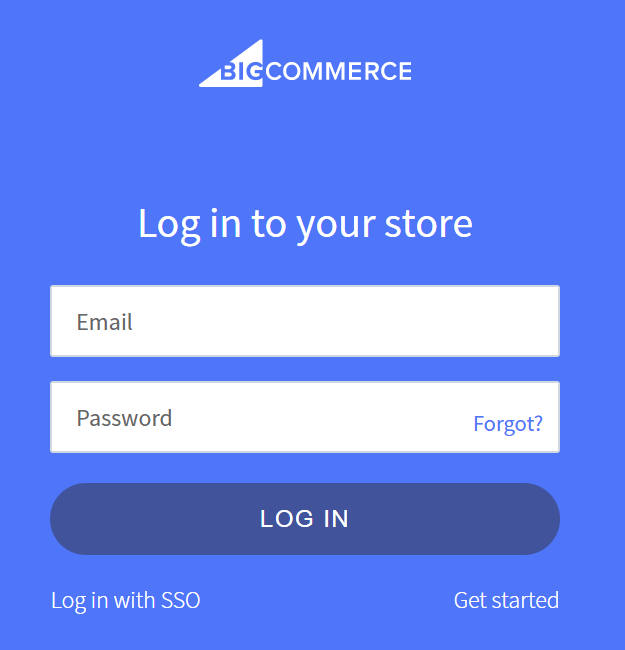
Begin by logging into your BigCommerce control panel with administrator credentials. Navigate to Channel Manager, which you’ll find in the main navigation menu or by visiting the Channel Manager direct link from your dashboard.
The Channel Manager interface displays all your connected channels and storefronts. For stores with multiple channels, you’ll see each storefront listed separately, allowing you to selectively activate maintenance mode for specific channels while keeping others operational.
Step 2: Select and Deactivate Your Storefront
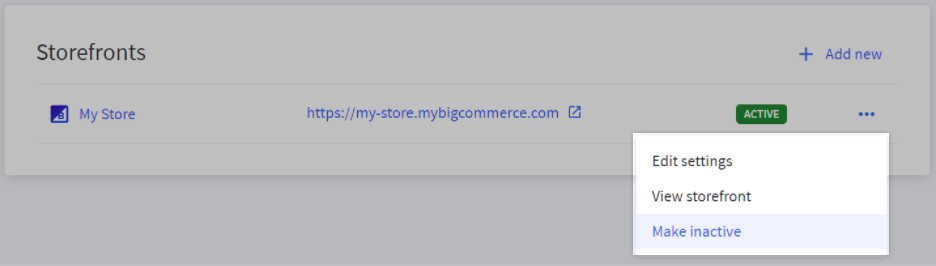
Under the Storefronts section, locate the storefront you want to place into maintenance mode. Click the three-dot menu (⋯) next to your storefront name, revealing a dropdown with several options.
Select “Make inactive” from this menu. This action triggers a confirmation popup that outlines the implications of putting your store into maintenance mode and provides space for your custom maintenance message.
Step 3: Configure Your Maintenance Message
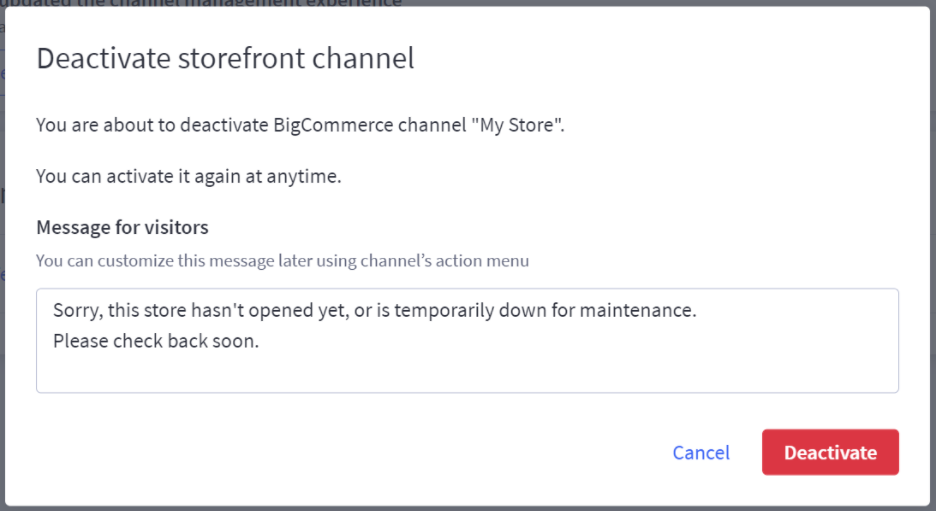
The maintenance message field supports up to approximately 2,000 characters, though BigCommerce doesn’t enforce a strict limit. This message appears on your homepage when customers visit during the maintenance period.
You can use HTML code in this field, enabling formatted text, styled messages, and even embedded elements like countdown timers or contact forms. Consider including:
- Clear explanation of why the store is temporarily unavailable
- Expected timeframe for when the store will be back online
- Alternative contact methods for urgent customer needs
- Links to your social media channels or customer support
- Professional tone that maintains your brand voice
After entering your message, click “Deactivate” to complete the process. Your storefront immediately becomes inactive, displaying your maintenance message to all non-administrative visitors.
Advanced Customization Options for Your Maintenance Page
While the basic message field provides sufficient customization for most situations, advanced users may want deeper control over the maintenance page appearance and functionality. BigCommerce’s Stencil framework enables complete customization through theme file editing.
Editing Maintenance.html Through the Stencil Framework
For complete design control, you can directly edit the maintenance.html file in your theme’s template files. This requires accessing your theme through the Advanced Settings in the Theme Manager.
Navigate to Storefront > Themes, click the Advanced button on your active theme, and select “Edit Theme Files.” Within the file structure, locate the templates folder containing maintenance.html.
This file controls the entire structure and styling of your maintenance page. You can modify HTML structure, add custom CSS styling, include JavaScript functionality, and integrate brand elements that match your regular storefront design.
Keep in mind that theme file editing requires understanding of the Stencil framework’s syntax and operation. Improper modifications can result in broken layouts or non-functional maintenance pages. Always test changes thoroughly and consider working with a BigCommerce development company if you lack technical expertise.
You might be interested in reading: Why BigCommerce Inventory Management is Important
Incorporating Brand Elements and Custom Styling
Professional maintenance pages maintain brand consistency through careful attention to visual elements. Include your logo, brand colors, typography, and design elements that customers recognize from your regular storefront.
Consider these design elements for your custom maintenance page:
- Full-width background images or branded patterns
- Custom fonts that match your store’s typography
- Color schemes aligned with your brand guidelines
- Logo placement and sizing consistent with your main site
- Responsive design that works across all device sizes
The maintenance page represents your brand during downtime periods. Investing in professional design ensures customers receive a polished experience even when your store is temporarily unavailable.
Adding Functional Elements to Your Maintenance Page
Beyond basic messaging, consider adding functional elements that provide value during the maintenance period:
- Email Capture Forms: Collect email addresses from visitors who want notification when your store reopens. This converts potential lost traffic into future marketing opportunities.
- Countdown Timers: If you have a specific reopening time, countdown timers create anticipation and give customers clear expectations about when to return.
- Social Media Links: Provide alternative channels for customers to stay connected with your brand during the maintenance period.
- Support Contact Information: Offer ways for customers with urgent needs to reach your support team, even when the storefront is unavailable.
What Happens During BigCommerce Maintenance Mode?
Understanding the technical implications and operational capabilities during maintenance mode helps you plan effectively and avoid surprises during the downtime period.
Backend Access and Administrative Functions
Store administrators and users with appropriate permissions maintain complete access to the BigCommerce control panel during maintenance mode. You can:
- Create manual orders and process shipments
- Manage inventory and product catalogs
- Review analytics and reports
- Configure store settings and preferences
- Work with apps and integrations
- Process refunds and manage customer service
This backend accessibility ensures business operations continue uninterrupted. You can still serve customers who contact you directly, process wholesale orders, or handle administrative tasks while the storefront remains inactive to the public.
Continue Reading: Magento to BigCommerce Migration – How to do it? (Pro Guide)
API Functionality and Integration Behavior
Server-to-Server API connections remain active during maintenance mode, allowing backend integrations to function normally. However, Storefront APIs become inactive, affecting any integrations that rely on frontend functionality.
This distinction matters significantly for stores with extensive integration ecosystems. BigCommerce integration with inventory management, accounting software, or fulfillment systems typically uses Server-to-Server APIs and continues working normally.
However, custom storefronts, headless implementations, or frontend-dependent integrations may experience disruptions. If you’re using headless BigCommerce solutions, plan accordingly as the storefront checkout becomes inaccessible.
Orders can still be created through Server-to-Server Cart and Checkout APIs, meaning backend order creation systems maintain functionality. If you need to prevent all new orders completely, you may need to temporarily disable apps or API accounts that create orders outside the storefront checkout.
SEO Impact and Search Engine Behavior
One of the most critical aspects of maintenance mode involves its impact on search engine rankings. BigCommerce handles this professionally by serving 503 HTTP status codes to search engine crawlers.
When search engines attempt to crawl your site during maintenance mode, they receive the 503 response indicating temporary unavailability. This status code specifically instructs search engines to “come back later” rather than removing your pages from their index.
The 503 response preserves your search rankings during short maintenance periods. Search engines understand this as temporary unavailability rather than permanent removal, preventing the ranking losses that would occur if pages returned 404 errors or redirect chains.
However, extended maintenance periods can still impact rankings. If your store remains in maintenance mode for weeks or months, search engines may begin devaluing your rankings despite the 503 responses. Plan maintenance windows carefully and aim to minimize downtime duration when possible.
Viewing Your Store During Maintenance Mode
Administrative users need to verify maintenance message appearance and confirm proper activation. BigCommerce provides specific methods for previewing your maintenance page as customers see it.
Administrative Preview Access
When logged into your store account with “Take Store Down for Maintenance” permissions, you can view your storefront normally. Click “View Store” in the upper left corner of the control panel to access the frontend.
For stores connected to multiple channels, click “View Storefronts” to select which storefront to preview. Your store’s homepage loads with a notification box at the top indicating maintenance mode is active.
This notification appears only to administrative users. Regular visitors won’t see this banner; they’ll proceed directly to your maintenance message page.
Customer View Testing
To see exactly what customers experience, click the “Click here to see what your visitors will see” link in the maintenance notification box. This displays your maintenance page as it appears to non-administrative visitors.
We recommend thoroughly testing this view while editing your maintenance message. The actual display varies based on your active theme, and what looks correct in the message editor may render differently on the storefront.
Test across multiple devices and browsers to ensure your maintenance page displays correctly for all customers. Mobile responsiveness is particularly important as mobile traffic often represents 50-70% of ecommerce visits.
Best Practices for Managing BigCommerce Maintenance Mode
Strategic maintenance mode management minimizes negative impacts while maximizing the benefits of downtime for improvements and updates.
Schedule Maintenance During Off-Peak Hours
Analyze your traffic patterns and sales data to identify periods with minimal customer activity. Most ecommerce stores experience lower traffic during specific times:
- Late night hours in your primary market’s timezone
- Early morning weekday periods
- Mid-week days (Tuesday-Thursday) versus weekends
- Post-holiday periods versus peak shopping seasons
Scheduling maintenance during these windows reduces the number of customers affected by your downtime. Even a few hours of strategic timing can mean the difference between affecting 100 customers versus 10,000.
Communicate Proactively with Your Customer Base
Don’t let maintenance mode be the first communication customers receive about your downtime. Proactive notification through multiple channels sets proper expectations and maintains trust:
- Email Campaigns: Send advance notice to your email list informing them of planned maintenance, expected duration, and when they can expect the store to reopen.
- Social Media Posts: Announce maintenance windows on your social channels, providing alternative contact methods and engagement opportunities during downtime.
- Website Banner: If possible, display a banner on your live site before maintenance begins, giving visitors advance warning and allowing them to complete purchases before the downtime starts.
- SMS Notifications: For stores with SMS marketing programs, text message notifications ensure mobile-first customers receive timely updates.
Set Realistic Timeline Expectations
When communicating maintenance windows, err on the side of longer estimates rather than shorter ones. Finishing early creates positive impressions; running over deadline damages credibility and frustrates waiting customers.
If your maintenance window extends beyond initial estimates, update your maintenance message with revised timing. Customers appreciate transparency even when delays occur, and regular updates demonstrate respect for their time and business.
Test Thoroughly Before Reactivating
Before taking your store out of maintenance mode, conduct comprehensive testing of all updated functionality:
- Complete test purchases from product selection through checkout
- Verify payment processing functions correctly
- Test mobile responsiveness across different devices
- Check all updated features and new functionality
- Confirm integration connections work properly
- Review page load speeds and performance metrics
Rushing the reactivation process to minimize downtime can backfire if customers encounter bugs or broken functionality. The additional hour spent testing prevents days of cleanup and reputation damage from releasing incomplete work.
How to Deactivate Maintenance Mode and Reopen Your Store
When your maintenance work completes and testing confirms everything functions correctly, reactivating your storefront follows a simple process.
Return to Channel Manager and locate your inactive storefront. Click the three-dot menu (⋯) next to the storefront name and select “Make active” from the dropdown options.
Your storefront immediately becomes active again, with all pages accessible to customers and normal operations resuming. Search engines can access your site again on their next crawl, though it may take several hours or days for full indexing to resume depending on your site’s crawl frequency.
Monitor your site closely during the first few hours after reactivation. Check for any issues that testing may have missed and be prepared to respond quickly to customer inquiries or technical problems.
Common Mistakes to Avoid with BigCommerce Maintenance Mode
Several common pitfalls can undermine the effectiveness of your maintenance mode implementation or create unnecessary problems.
Using Maintenance Mode for Extended Periods
While maintenance mode preserves your SEO better than account deactivation, prolonged use still impacts search rankings. Search engines eventually begin treating long-term unavailability as a signal of site quality issues or abandonment.
If you need extended downtime exceeding several weeks, consider alternative approaches like working in a staging environment and deploying changes all at once rather than keeping your live site in maintenance mode.
Providing Vague or Missing Communication
Maintenance messages that simply state “We’ll be back soon” without additional context frustrate customers and create uncertainty. Specific information builds trust:
- Explain why maintenance is necessary
- Provide realistic timeframes for return
- Offer alternative contact methods
- Show appreciation for customer patience
Even if you can’t give an exact time, ranges like “We expect to be back within 2-4 hours” provide more value than generic “coming soon” messaging.
Forgetting to Update Your Maintenance Message
As maintenance work progresses, update your message if timelines change. Customers who visit multiple times during extended maintenance periods notice outdated information, which erodes trust in your communications.
If delays occur or you finish ahead of schedule, update the message accordingly. This attention to detail demonstrates professionalism and respect for customer time.
Neglecting Mobile Optimization
Many maintenance page customizations look perfect on desktop but break on mobile devices. With mobile traffic dominating ecommerce, failing to optimize your maintenance page for smaller screens alienates a significant portion of your audience.
Test your maintenance page across multiple device sizes and orientations. Ensure text remains readable, images scale appropriately, and any interactive elements function correctly on touch interfaces.
Key Takeaways
- BigCommerce maintenance mode protects your SEO rankings through proper 503 server responses while giving you safe space to implement updates and fixes
- Access Channel Manager to activate maintenance mode in three clicks, with HTML support for customized messaging up to 2,000 characters
- Administrative users maintain full backend access for orders, shipments, and store management even while the storefront displays your maintenance message to customers
- Schedule maintenance during off-peak hours and communicate proactively through email, social media, and website banners to minimize customer disruption
- Test thoroughly before reactivation and avoid extended maintenance periods that can eventually impact search rankings despite proper 503 responses
Conclusion
Properly managing BigCommerce maintenance mode ensures you can perform necessary updates, implement new features, and address critical issues without damaging your search rankings or losing customer trust. The feature provides a professional solution for temporary downtime needs, far superior to simply closing your account or leaving a broken site visible to customers.
The key to successful maintenance mode implementation lies in strategic planning, clear communication, and thorough testing. By following the practices outlined in this guide, you can confidently use maintenance mode when necessary while minimizing negative impacts on your business operations.
Need expert assistance managing your BigCommerce store’s maintenance, updates, or ongoing optimization? Our team of certified BigCommerce developers at Folio3 specializes in helping businesses maximize their platform investment while maintaining optimal performance. Contact our BigCommerce specialists to discuss how we can support your store’s technical needs.

FAQs
How Do I Make My BigCommerce Store Live After Maintenance Mode?
Navigate to Channel Manager, click the three-dot menu next to your inactive storefront, and select “Make active.” Your storefront immediately becomes accessible to customers with all normal functionality restored.
Can You Have Multiple Stores on BigCommerce?
Yes, BigCommerce’s Multi-Storefront (MSF) feature allows a single store to power multiple storefronts, each with unique domains, themes, pricing, and settings, all managed from one control panel. This feature is available on Enterprise plans.
What Is BigCommerce Maintenance Mode and Why Is It Important?
BigCommerce maintenance mode temporarily makes your storefront inactive while displaying a custom message to visitors, allowing you to safely perform updates while protecting your SEO rankings through proper 503 server responses that prevent search engine delisting.
How Do I Enable Maintenance Mode on My BigCommerce Store?
Access Channel Manager, click the three-dot menu next to your storefront under the Storefronts section, select “Make inactive,” enter your custom maintenance message, and click “Deactivate” to activate maintenance mode.
Can I Customize the Maintenance Page in BigCommerce Maintenance Mode?
Yes, you can add custom messages with HTML code up to 2,000 characters through the basic interface, or edit the maintenance.html file directly through the Stencil framework for complete design control including custom styling, branding elements, and interactive features.
How Can I Access My BigCommerce Store During Maintenance Mode?
Store administrators with appropriate permissions can access the store normally by logging into their account. The backend control panel remains fully functional, and clicking “View Store” allows you to see the storefront with a notification that maintenance mode is active.
Are There Any Best Practices for Using Maintenance Mode on BigCommerce?
Schedule maintenance during off-peak hours, communicate proactively with customers about planned downtime, provide specific timeframes in your maintenance message, test all changes thoroughly before reactivating, and avoid extended maintenance periods that may impact SEO rankings despite proper 503 responses.