Facebook ads are powerful, but only if you’re tracking what actually converts. Without a Facebook pixel, you’re flying blind. You see ad spend but not return. You launch campaigns but can’t optimize them. The solution is installing Facebook pixel on your BigCommerce store—a tiny snippet of code that tracks customer behavior and powers conversion optimization.
This guide walks you through installing and optimizing the BigCommerce Facebook Pixel, including how to set it up on your store.
Summary
- Facebook pixel tracks customer actions on your BigCommerce store and feeds data back to Facebook
- Proper pixel installation enables conversion tracking with Facebook Pixel on BigCommerce
- Different events (view, add-to-cart, purchase) require specific setup in BigCommerce
- Custom audiences based on Facebook pixel BigCommerce data, allow hyper-targeted retargeting campaigns
- Regular pixel audits ensure tracking accuracy and campaign performance with Facebook Pixel on BigCommerce
Understanding Facebook Pixel for BigCommerce
What Does Facebook Pixel Track?
Facebook pixel captures customer behavior:
- Page views (awareness)
- Product views (interest)
- Add-to-cart events (consideration)
- Initiate checkout (intent)
- Purchase events (conversion)
This data flows back to Facebook, allowing you to optimize ads based on actual conversions, not just clicks.
Why Pixel Data Matters
Without pixel data, Facebook’s algorithm guesses who’ll convert. With pixel data, it learns exactly what converts and finds similar customers. Pixel-fed campaigns typically outperform pixel-less campaigns by 20-40%.

Installing Facebook Pixel on BigCommerce
Step 1: Get Your Pixel ID
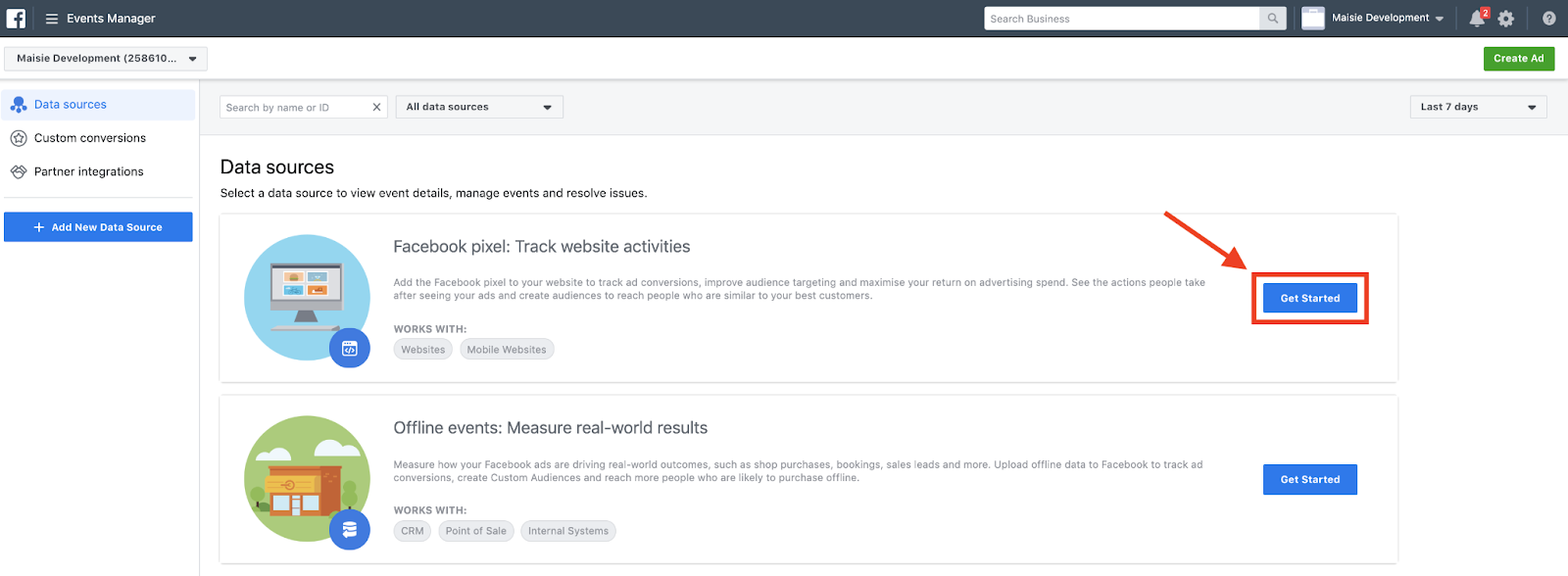
- Log into your Facebook Ads Manager
- Go to Tools > Pixels
- Click Create a Pixel (if you don’t have one)
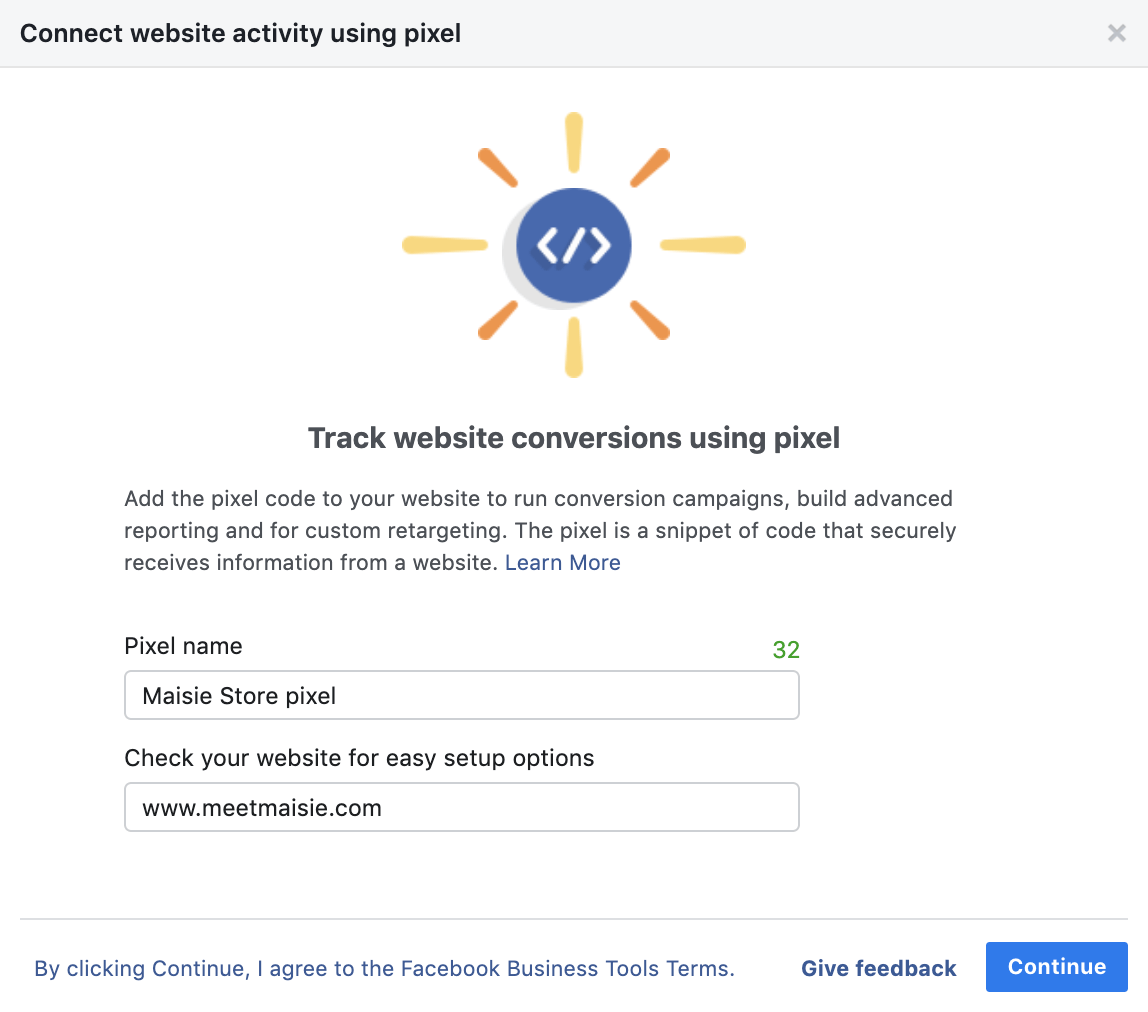
- Confirm your BigCommerce store URL
- Copy your Pixel ID (a 15-digit number)
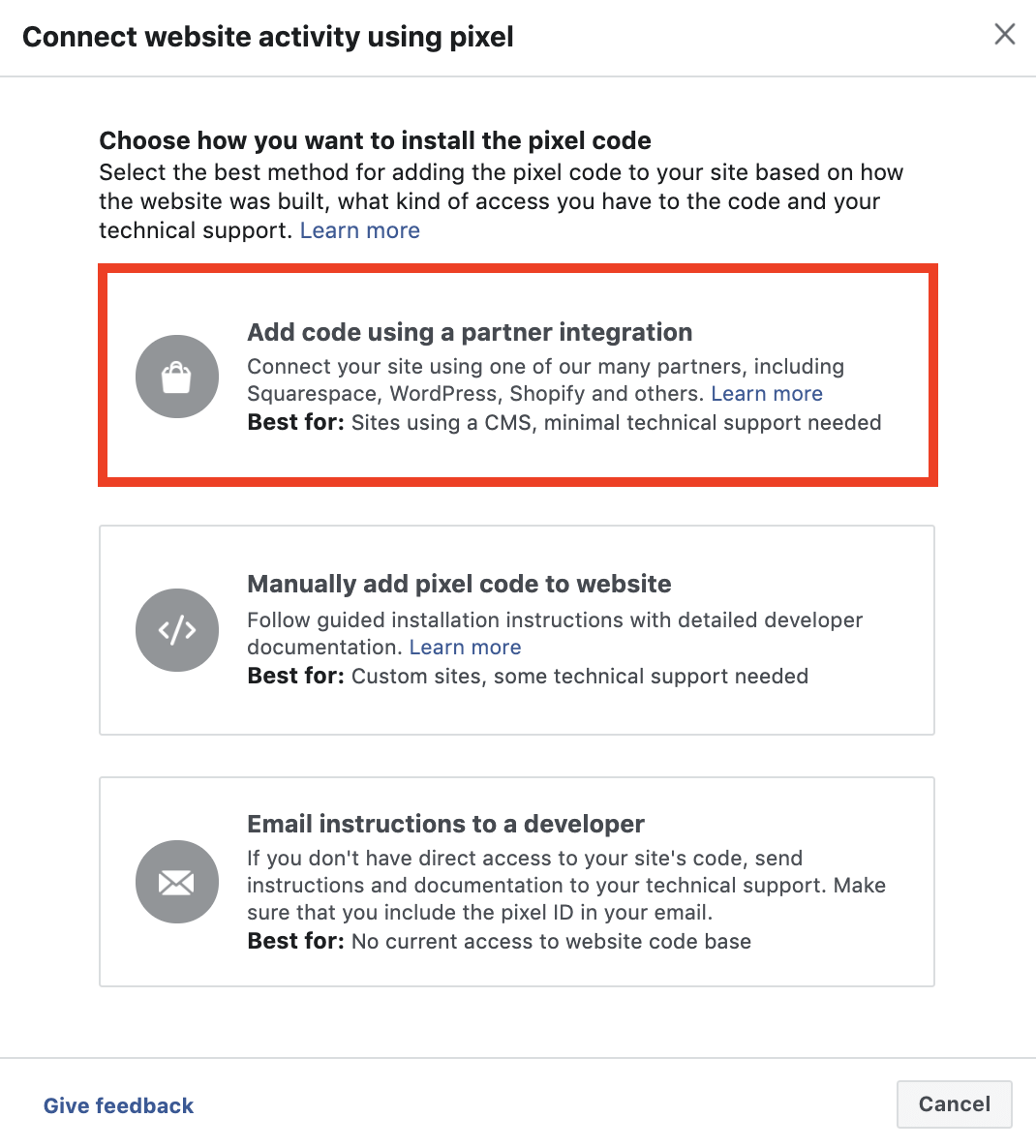
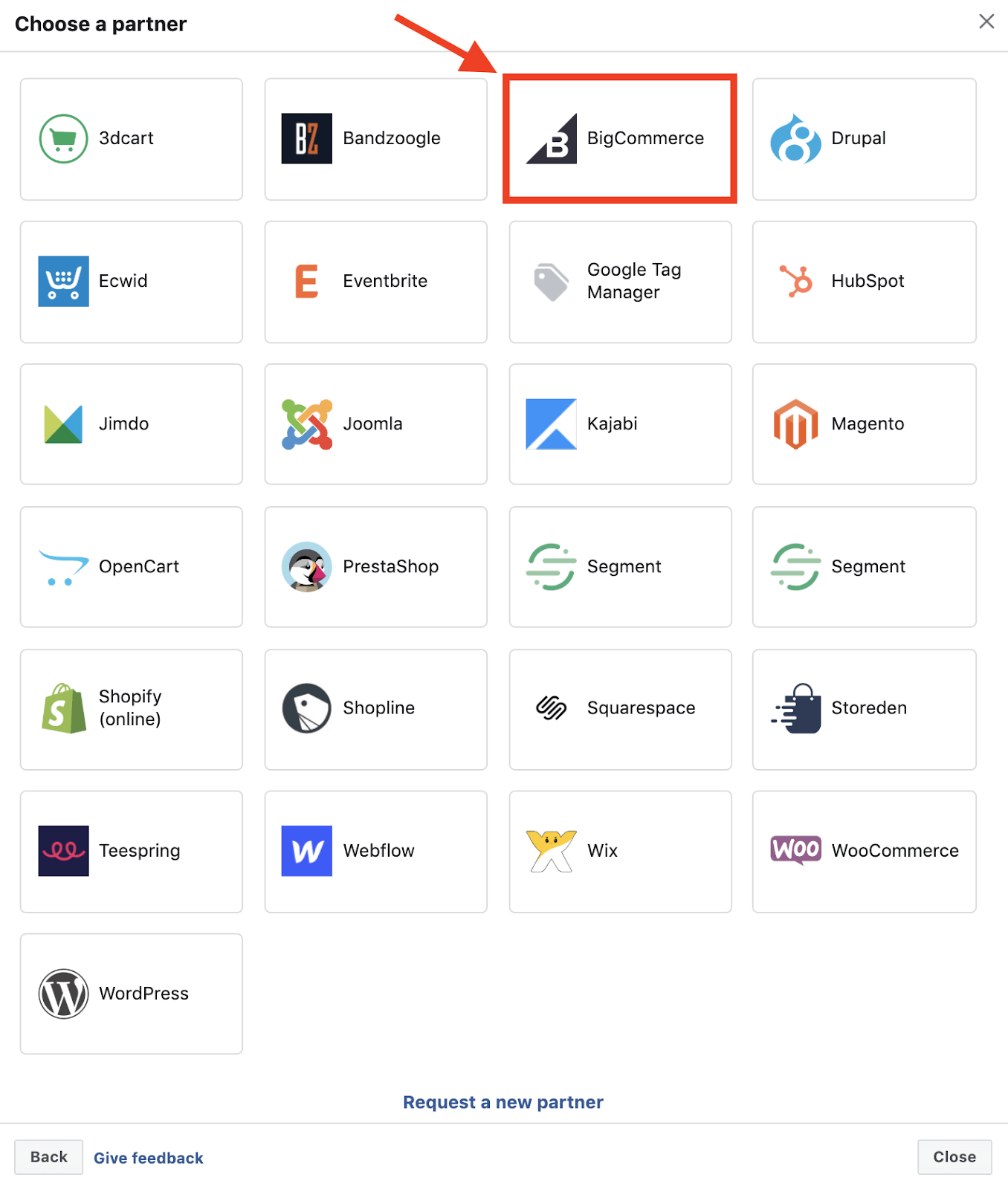
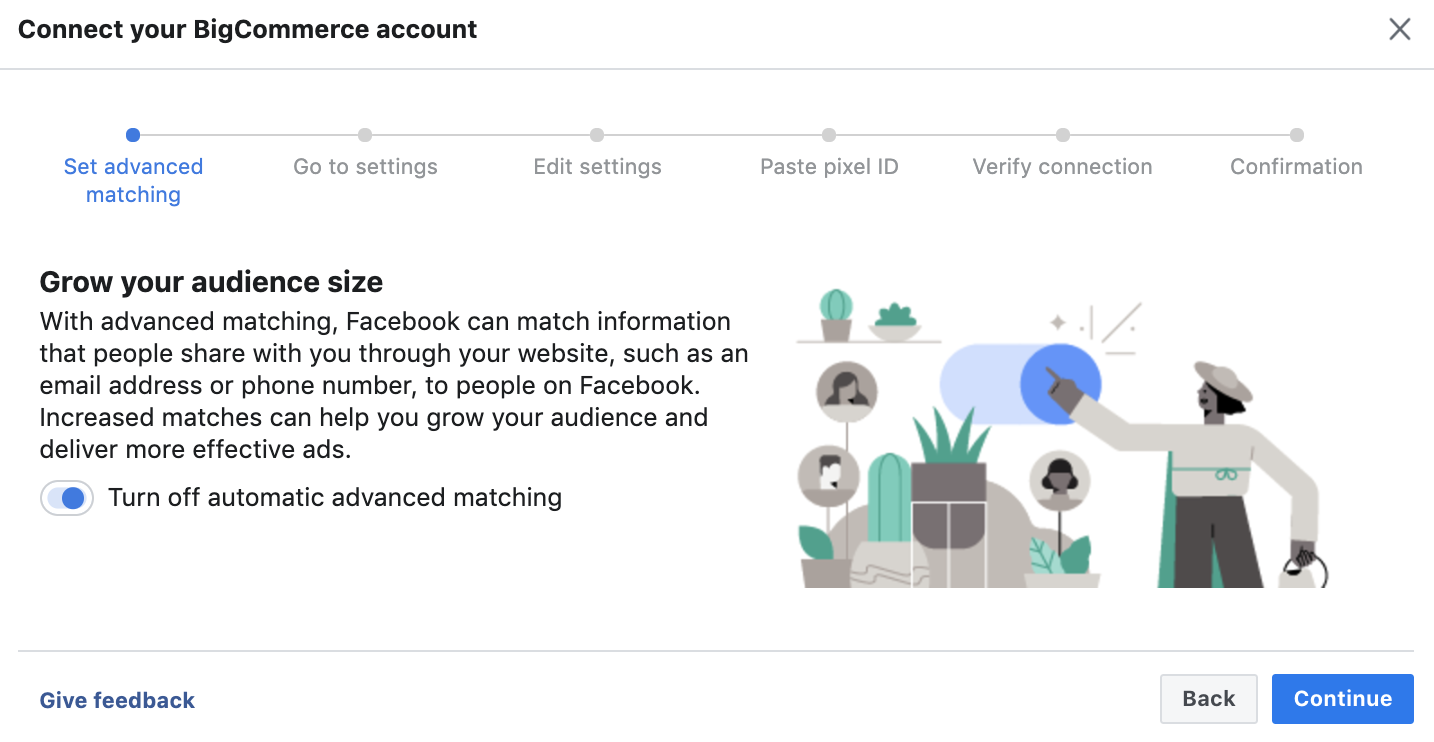
Step 2: Install Pixel Code in BigCommerce
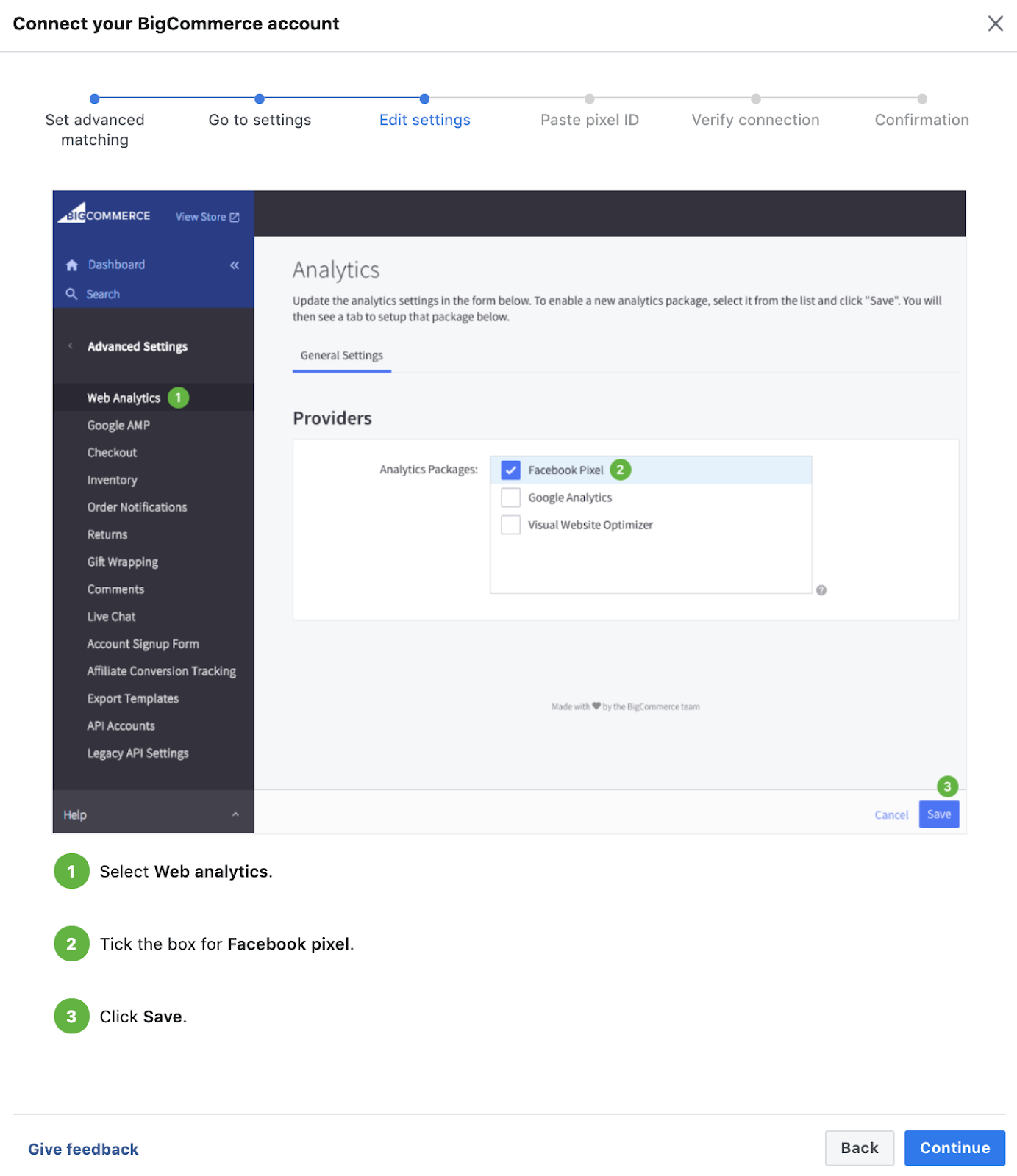
Method 1: Using BigCommerce App Marketplace
- In BigCommerce admin, go to Apps > Marketplace
- Search for “Facebook” or “Meta”
- Install the official Facebook Business app for Facebook pixel on Bigcommerce
- Connect your Facebook account
- Enter your Pixel ID
- The app handles Facebook pixel BigCommerce code automatically
Method 2: Manual Installation
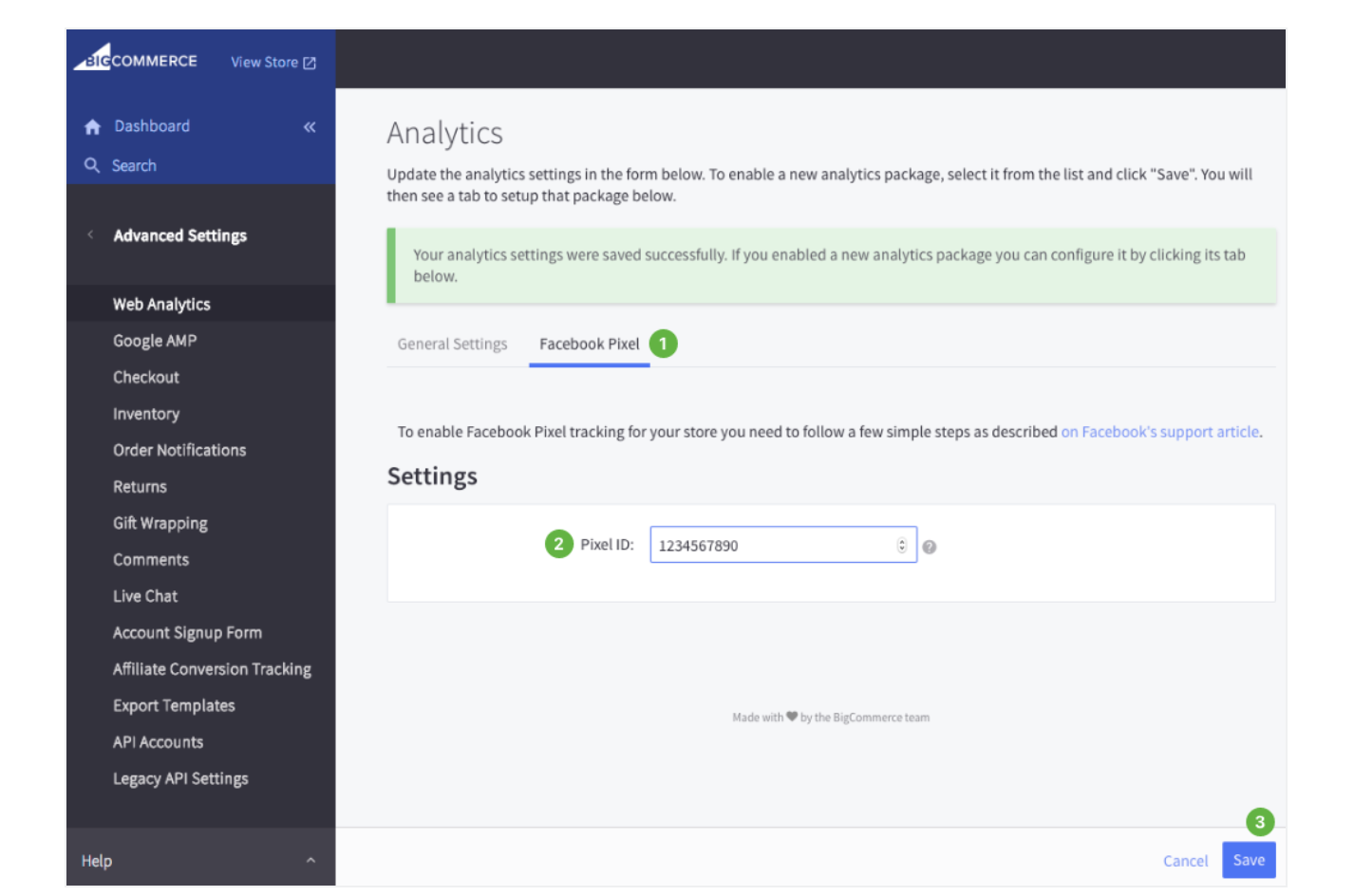
If the app isn’t available in your region:
- In BigCommerce admin, go to Storefront > Script Manager
- Click Create Script
- Paste the Facebook pixel base code:
html

<!-- Facebook Pixel Code -->

<script>

  !function(f,b,e,v,n,t,s)

  {if(f.fbq)return;n=f.fbq=function(){n.callMethod?

  n.callMethod.apply(n,arguments):n.queue.push(arguments)};

  if(!f._fbq)f._fbq=n;n.push=n;n.loaded=!0;n.version='2.0';

  n.queue=[];t=b.createElement(e);t.async=!0;

  t.src=v+'?id=YOUR_PIXEL_ID&ev=PageView&noscript=1';

  s=b.getElementsByTagName(e)[0];

  s.parentNode.insertBefore(t,s)}(window, document,'img',

  'https://connect.facebook.net/en_US/fbevents.js');

  fbq('init', 'YOUR_PIXEL_ID');

  fbq('track', 'PageView');

</script>

<!-- End Facebook Pixel Code -->
- Replace YOUR_PIXEL_ID with your actual ID
- Set placement to Footer (all pages)
- Save and test
Step 3: Verify Pixel Installation
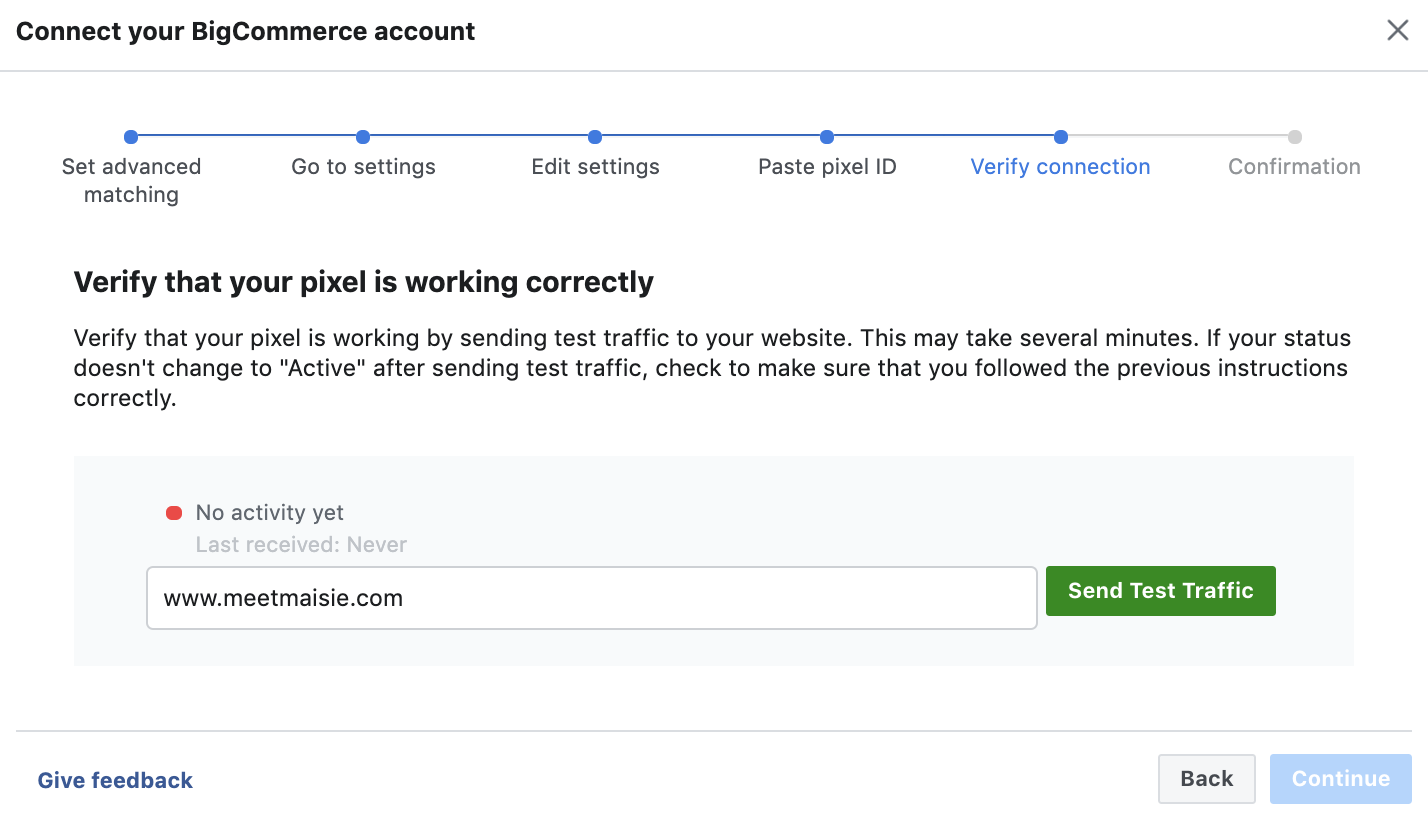
- Open your BigCommerce store in a browser
- Right-click and select Inspect (or press F12)
- Go to the Console tab
- Type: fbq and press Enter
- If you see a function definition, pixel is installed correctly
Setting Up Conversion Events
Standard Events vs. Custom Events
Standard Events are pre-built actions Facebook recognizes:
- ViewContent (product page viewed)
- AddToCart (item added to cart)
- InitiateCheckout (checkout started)
- Purchase (order completed)
Standard events are easiest to set up and Facebook’s algorithm understands them well. Use these first.
Tracking Purchase Events (Most Important)
The purchase event is your primary optimization target. When pixel tracks purchases, Facebook’s algorithm learns who converts and finds more like them.
Setup for BigCommerce:
If using the Facebook app, purchase tracking happens automatically. If installing manually, add to your post-purchase page (order confirmation):
html

<script>

  fbq('track', 'Purchase', {

    value: ORDER_TOTAL,

    currency: 'USD'

  });

</script>
Replace ORDER_TOTAL with your actual order amount.
Tracking Add-to-Cart Events
Add-to-cart events show interest and help build audiences for remarketing.
Add to product pages:
html

<script>

  fbq('track', 'AddToCart', {

    value: PRODUCT_PRICE,

    currency: 'USD',

    content_name: 'PRODUCT_NAME',

    content_id: 'PRODUCT_ID'

  });

</script>
Creating Audiences with Pixel Data
Website Custom Audiences
Build audiences of customers who visited your store:
- All website visitors (last 30 days)
- Product viewers (last 7 days)
- Cart abandoners (last 3 days)
- Customers (purchases in last 90 days)
Create these in Facebook Ads Manager under Audiences. Use them for remarketing campaigns.
Lookalike Audiences
Create audiences that match your best customers. Facebook finds users similar to people who purchased.
Build a lookalike audience from:
- Customers (past 90 days)
- High-value customers (purchase > $100)
- Repeat customers
Optimizing Campaigns with Pixel Data
Picking the Right Optimization Goal
When creating ads, choose the right campaign objective based on pixel events:
| Campaign Goal | Optimization Event | Best For |
| Awareness | ViewContent | Building brand recognition |
| Traffic | ViewContent | Driving store visits |
| Conversion | Purchase | Maximizing sales |
| Engagement | AddToCart | Building consideration |
Choose Purchase as your optimization goal for max ROI.
Understanding Attribution
Facebook attributes conversions to the last ad click within 28 days. If someone clicks your ad today and buys 20 days later, Facebook credits that ad. This helps you understand true campaign impact.
Common Pixel Setup Mistakes
Not Firing Purchase Events
This is the most common error. If the purchase pixel doesn’t fire, Facebook can’t optimize for conversions. Test your order confirmation page thoroughly. The purchase event is the most valuable event—it’s what Facebook’s algorithm learns from. Without it, you’re flying blind.
Test your pixel by making a test purchase on your store. Check the browser console for pixel firing. Verify the event appears in Facebook Events Manager within 24 hours. If it doesn’t, contact BigCommerce support or the app developer.
Firing Duplicate Events
If both the app and manual code are installed, events fire twice, inflating numbers and confusing Facebook’s algorithm. Remove manual code if using the app. Duplicate data makes performance reports meaningless and confuses Facebook’s learning algorithms.
Check your Script Manager and remove any manual pixel code if you’re using the Facebook app. Use one method only—app or manual code, not both.
Not Tracking Content Value
Include order value in purchase events. Facebook uses this to optimize for higher-value purchases, not just volume. If you only track purchase volume, Facebook optimizes to find people who buy anything. If you track purchase value, Facebook optimizes to find people who buy expensive items.
For BigCommerce, ensure your pixel tracking includes order value. Check with the app developer to confirm this is set up correctly.
Ignoring Privacy Updates
iOS changes require proper setup. BigCommerce and Facebook handle most of this, but ensure you’re using current pixel standards. iOS privacy changes (limiting cross-site tracking) have reduced pixel effectiveness slightly, but the channel is still powerful for stores that use it correctly.
Ensure you’re using the latest pixel code version. Older implementations may lose functionality as browsers update privacy policies.
Advanced Pixel Optimization
Event Value Reporting
Beyond purchase value, track the value of other events. If an add-to-cart is 30% of purchase value (indicating a 30% cart conversion rate), set the add-to-cart event value to $15 when the purchase value is $50. This helps Facebook optimize for high-value interest signals.
Similarly, track content value. A view of a high-margin product might have a different value than a view of a low-margin product. If you’re advanced, customize event values based on product profitability.
Testing Pixel-Fed Campaigns
Don’t trust pixel data blindly. Run a test campaign where you optimize for purchase events, and another where you optimize for add-to-cart events. Compare results. One might outperform the other in your specific market.
Test different audiences: all website visitors, cart abandoners, or customers. Compare results. You might find that cart abandoner audiences outperform lookalike audiences, or vice versa.
Conversion API as Pixel Supplement
Facebook’s Conversions API (server-side tracking) supplements pixel tracking. While pixel is browser-based and visible to users, Conversions API sends data server-to-server, bypassing browsers and ad blockers.
For advanced users: implement Conversions API alongside pixel. This creates redundancy—if a user blocks pixels, you still track the conversion server-side. BigCommerce support or a developer can set this up.
Pixel Audit Checklist
- Pixel installed on all pages (confirm in Console)
- Purchase event fires on the order confirmation page
- Add-to-cart event fires on the product page
- No duplicate events firing
- Custom audiences created and updated
- Conversion pixel optimization is enabled in ads
- 7-day conversion window minimum in campaigns
- Monthly review of pixel performance
Key Takeaways
- Facebook pixel is essential for tracking conversions and optimizing ads
- Install via the BigCommerce Facebook app for easiest setup
- Verify installation using browser console
- Set up purchase events to enable conversion optimization
- Create custom audiences for remarketing to hot prospects
Conclusion
Facebook pixel is the bridge between your BigCommerce store and Facebook’s algorithm. Proper installation and setup of Facebook pixel on BigCommerce enable smarter ads and better ROI. Once Facebook pixel and BigCommerce data flows correctly, Facebook finds your best customers automatically and scales what works.
Install your pixel this week, verify it’s working correctly, and start tracking conversions. Explore our BigCommerce development services or contact our team for Facebook Pixel BigCommerce setup assistance.
FAQ
What’s the difference between Facebook pixel and Conversions API?
Facebook pixel is browser-based tracking for Facebook pixel on BigCommerce. Conversions API sends server-side data directly to Facebook. Both work together to complete BigCommerce Facebook tracking pixel functionality.
How long does pixel data take to show in Facebook Ads Manager?
Real-time. Events show in Ads Manager within minutes using Facebook Pixel BigCommerce integration. However, Facebook needs at least 50 conversions for optimization.
Can I install multiple pixels on BigCommerce?
You should have one primary pixel for Facebook Pixel on BigCommerce. Using multiple pixels causes duplicate tracking and wastes budget. Stick to one Facebook pixel BigCommerce setup.
Why aren’t my conversions showing in Facebook Ads Manager?
Check that purchase events are firing on your order confirmation page with Facebook Pixel on BigCommerce. Use the browser console to verify pixel code is loading. Wait 24 hours for data to populate.
How do I know if my Facebook pixel is working?
Install the Meta Pixel Helper browser extension. It shows which events fire on each page with Facebook Pixel BigCommerce. Green checkmarks mean the pixel is working correctly.