Introduction
Ecommerce businesses generate vast amounts of data. Analyzing this data effectively is crucial for success. This blog post will guide you on how to integrate Google BigQuery with your Bigcommerce store. This BigQuery integration empowers you with powerful data analysis capabilities, enabling data-driven decisions and a competitive edge.
Read Also: 10 Steps to Launch Your Online B2B Business with BigCommerce
Understanding the Need for Integration
Bigcommerce provides valuable data on sales, orders, customers, and more. However, its native reporting features might be limited for complex analyses. Google BigQuery, a serverless data warehousing service, offers a robust and scalable solution.
By integrating BigQuery, you can:
- Perform in-depth analysis: Explore customer behavior, identify trends, and uncover hidden insights.
- Gain deeper customer understanding: Segment customers, personalize marketing campaigns, and improve customer retention.
- Optimize marketing spend: Analyze campaign performance, identify high-value channels, and allocate budgets effectively.
- Improve business decisions: Make data-driven decisions across all areas of your business, from BigCommerce development for product to inventory management.
Step-by-Step Guide for Google BigQuery Integration
Here’s how to create and manage coupon codes in your BigCommerce store:
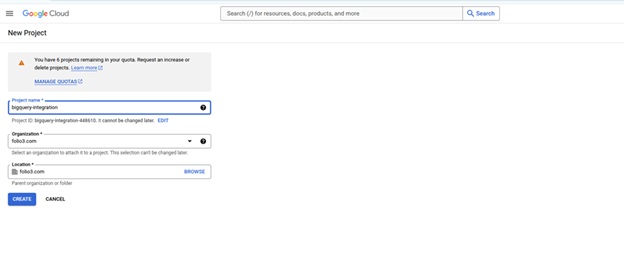
1. Set Up a Google Cloud Project
First, create a Google Cloud project to access BigQuery. Visit the Google Cloud Console and create a new project.
2. Enable BigQuery API
- From APIs & Services enable BigQuery
3. Create a Dataset
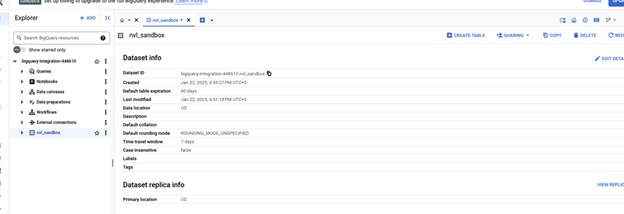
- In your Google Cloud console, click the navigation icon in the top left. Scroll down to the Big Data section and click BigQuery.
- You can pin BigQuery to the top of this menu so it’s easier to access later.
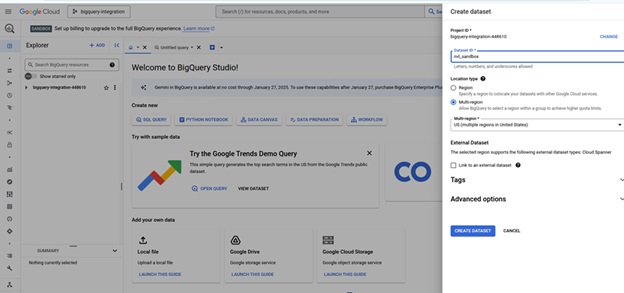
- On the left side of the screen, click the ⠇next to the Project you just created and select Create dataset.
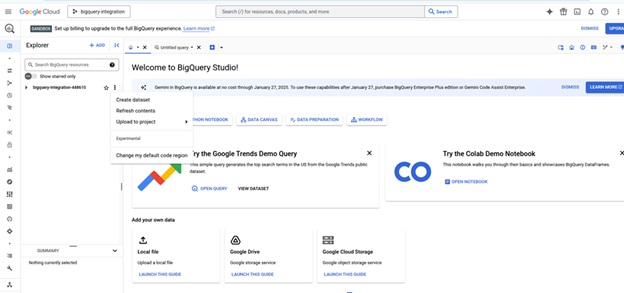
4. Create Dataset
- Create a Dataset ID. We recommend using your domain name (like company.com). If you have multiple stores, we recommend each store to have its own dataset.
- Most merchants can leave the other default settings as is.
5. Set Up Permissions
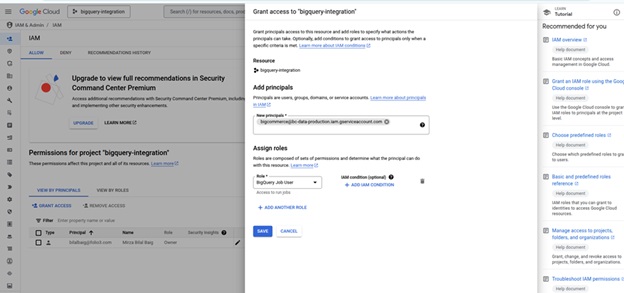
- Go to IAM & Admin, select your project at the top of the page, then click Grant Access. Enter the following details and click Save.
- New principals: [email protected]
- Role: BigQuery Job User
6. Share permission
Go to BigQuery. On the left side of the screen, select your Project and open your Dataset, then:
1. Click Sharing › Permissions.
2. Click Add principal and enter the following details.
3. New principals: [email protected]
4. Role: BigQuery Data Owner
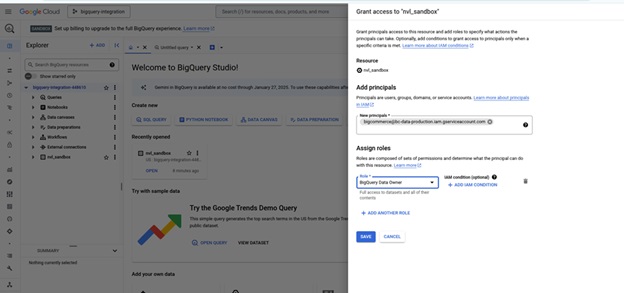
5. When you’re finished click Save. This grants BigCommerce the appropriate permissions to load data into your BigQuery account.
6. Connect Your Store, Test Access, and Create Table
In your BigCommerce control panel, go to Settings › Data solutions. Under Data warehouses, click Connect next to Google BigQuery.
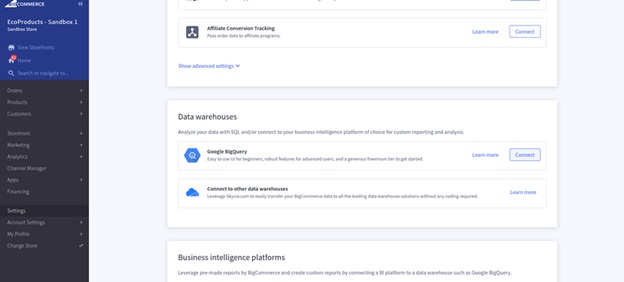
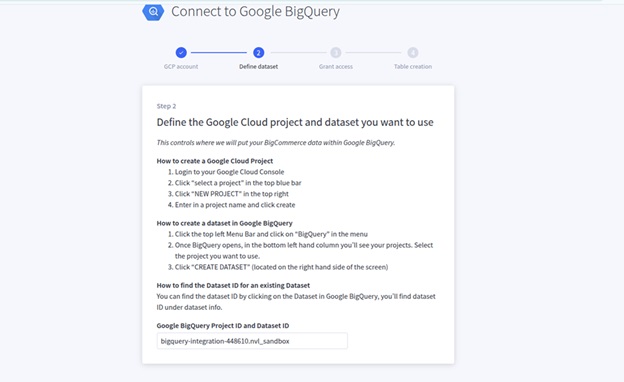
7. enter your BigQuery Project ID and Dataset ID in the following format, then click Next.
enter your BigQuery Project ID and Dataset ID in the following format,
e.g. bigquery-integration-448610.nvl_sandbox
then click Next.
8. use the Test access button to ensure your project, dataset, and permission settings are configured correctly
If you’ve set up billing and the test still fails:
Review your Project ID and Dataset ID and ensure they are formatted correctly.
Review your permission settings and ensure they are applied to the correct Project and Dataset.
Click Next.
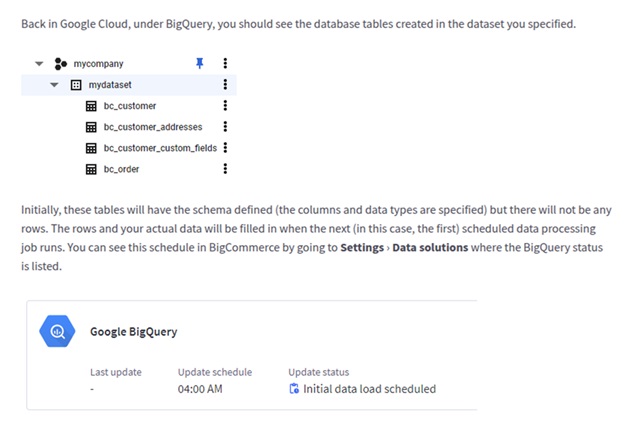
9. Table creation, select your timezone and click Finish.
Note: When selecting your timezone, think about what represents a “day” to you when you’re asking analytical questions. For example, if you want to know “how much revenue did I make on Monday”, the timezone you set here will determine when Monday begins and ends.
Conclusion
Integrating BigCommerce with Google BigQuery empowers businesses to leverage data for growth. By following the outlined steps and best practices, you can unlock valuable insights and improve decision-making.
If you’re considering Google BigQuery integration, now is the time to start enhancing your e-commerce analytics. By leveraging the combined power of these platforms, you can gain a deeper understanding of your customers, optimize your marketing efforts, and drive significant business growth.
Read Also: How a BigCommerce Development Company Creates a Captivating Online Shopping Experience