Running an online store with WooCommerce? Efficient log management can be a game-changer for debugging issues, monitoring activities, and boosting your website’s overall performance.
Enter WooCommerce Logger a powerful built-in tool that helps store owners and developers keep track of important events and potential errors in their WooCommerce environment.
In this blog, we’ll explore what the WooCommerce Logger is, its benefits, and how to make the most of it in your store.
What is WooCommerce Logger?
WooCommerce Logger is a built-in logging utility in WooCommerce that lets you record and manage logs for various activities, including payment gateways, API requests, database updates, and custom plugin events.
These logs are crucial for diagnosing issues and optimizing your WooCommerce store’s performance. Stored in your WordPress database, these logs can be accessed directly from the WooCommerce admin interface.
Why Use WooCommerce Logger?
- Troubleshooting Errors
WooCommerce Logger helps you pinpoint the root cause of errors in your store, such as failed payment transactions or API connection issues. - Monitor Store Activities
Keep track of critical events, including order processing, plugin activities, and gateway operations, for better transparency. - Debugging Custom Code
If you’re a developer working on custom WooCommerce integrations or plugins, WooCommerce Logger provides a simple and effective way to track the behavior of your code. - Improved Customer Experience
By addressing issues proactively using log data, you can ensure a smoother shopping experience for your customers.
How to Use WooCommerce Logger
1. Accessing WooCommerce Logs
To view WooCommerce logs:
- Go to your WordPress admin panel.
- Navigate to WooCommerce > Status > Logs.
- Select the log file you want to view from the dropdown menu and click View.
The logs are categorized by date and event type, making it easy to locate the information you need.
2. Enabling Logging for Plugins and Gateways
Many WooCommerce extensions, such as payment gateways (e.g., PayPal or Stripe), allow you to enable logging. This setting is typically found in the extension’s configuration section under WooCommerce > Settings.
For example:
- Navigate to WooCommerce > Settings > Payments.
- Select the payment gateway (e.g., Stripe).
- Enable the logging option, and save changes.
3. Writing Custom Logs
If you’re a developer, you can use the WC_Logger class to create custom logs. Here’s an example:
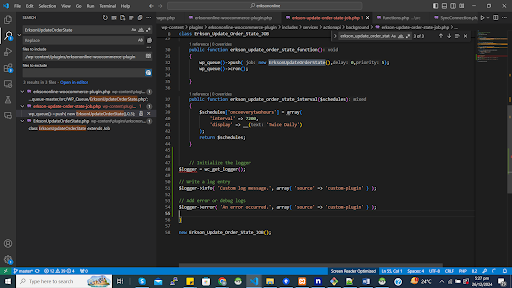
// Initialize the logger

$logger = wc_get_logger();


// Write a log entry

$logger->info( 'Custom log message.', array( 'source' => 'custom-plugin' ) );


// Add error or debug logs

$logger->error( 'An error occurred.', array( 'source' => 'custom-plugin' ) );
In this snippet:
- info writes an informational log.
- error writes an error log.
- source helps you identify the source of the log.
These logs can also be accessed in the WooCommerce Logs section.
Best Practices for Using WooCommerce Logger
- Enable Logging for Critical Extensions
Always enable logging for payment gateways, shipping integrations, and APIs to monitor their activities and debug issues quickly. - Regularly Check Logs
Make it a habit to review your WooCommerce logs periodically to identify and address potential issues before they impact your customers. - Keep Logs Manageable
WooCommerce Logger stores logs in your WordPress database, which can grow large over time. Use a database cleaning plugin or WooCommerce’s built-in tools to delete old logs and keep your database optimized. - Use Logging in Development
When building custom WooCommerce plugins or themes, leverage WooCommerce Logger to track and debug your code efficiently.
Conclusion
The WooCommerce Logger is an indispensable tool for anyone running a WooCommerce store. Whether you’re troubleshooting errors, monitoring payment gateways, or developing custom solutions, this logging utility provides valuable insights into your store’s operations.
By using WooCommerce Logger effectively, you can enhance your store’s stability, improve customer satisfaction, and save countless hours on debugging.
At Folio3, implementing robust logging mechanisms has been a cornerstone of our WooCommerce development services across various connector projects. By integrating advanced logging capabilities, we’ve ensured that all critical activities, from API interactions to data synchronization and error tracking, are meticulously recorded.
These logs provide real-time insights into system operations, enabling seamless debugging and performance optimization. Whether it’s building custom integrations for ERP systems, marketplaces, or third-party platforms, our logging solutions empower clients to monitor processes, identify bottlenecks, and ensure reliable data flow.
This focus on transparency and accountability underscores our commitment to delivering high-quality, maintainable solutions tailored to our clients’ needs.